9

I have multiple cameras with an animation scene. I want to swap to their respective views while rendering the video.

So, essentially, my questions here are:

  1. How do we get renders from multiple cameras?

  2. How do we edit the renders in such a way that the output appears as though the camera is switching views?

This is a test file:

My scene is setup in a similar manner.

Tejas
  • 945
  • 2
  • 13
  • 36

1 Answers1

15

There are multiple different ways. These are only a few. They can also be mixed together.

(1).1 Bind the camera to a marker

You can do that by binding the camera to a marker on your timeline.

You can create markers on the timeline with the M key. Then select the camera you want to bind to that marker and hit Ctrl+B. As soon as your timeline reaches that marker the camera will switch. It is important that both the marker and the camera are selected.

blender bind camera (I forgot to turn the screencast keys on, see description above)

(1).2 Use multi-view (for stereoscopy)

You can enable multiple views in the Scene tab of the Properties panel. These are basically for stereoscopy-like effects, not for switching cameras, so I will only post a link to the manual: https://docs.blender.org/manual/en/dev/render/workflows/multiview/index.html

(2).1 Use the video sequence editor

The fancier (and maybe better) way is be to render the scene multiple times with the different cameras activated. Save the single frames in a lossless format. Then you can easily import them to the video sequence editor as strips and use the cross blend mode. You can then adjust the opacity value with keyframes (hover and I)

video sequence editor (old gif)

Edit:

video sequence editor

In this animation I use the camera override tool of the vse. You simply set up your scene and your cameras (with everything, including animations). Then in the video sequence editor add your scene strip multiple times (Shift+A) and set your camera override in the right panel.

Although I created a new scene (that was supposed to hold the scene strips). I forgot to switch back to that scene after switching to the vse. It is recommended to always use a separate scene for the sequencer! It may work in this example, but maybe not in bigger projects.

(2).2 Use the compositor

You can also add your frames to the compositor and mix them with very fancy effects. Then you can add this whole compositing scene to any video sequence editor. By the way: You can also add layers from other scenes directly to the compositor with the Render Layers node. But then you need to copy your scene and if I got you correct this is not what you want.

It is possible that this is not what you want, so choose your tools wisely.
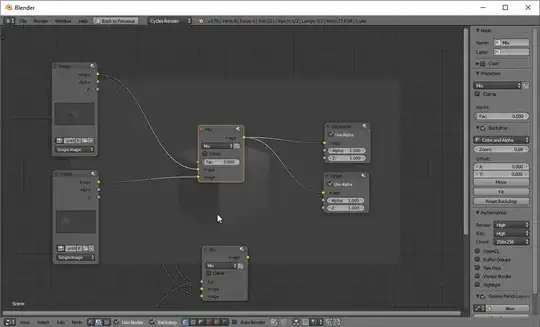
effects with the compositor

sirjofri
  • 371
  • 3
  • 7
  • Interesting, i'll try that... In the mean time, i updated my question, could you look into it? – Tejas Jan 26 '17 at 19:23
  • could you explain (2.1) in a bit more detail? that techniques hitting home more than others – Tejas Jan 26 '17 at 20:38
  • @Tejas is that detailed enough? Or do you need more information? – sirjofri Jan 27 '17 at 14:47
  • OK, i think i got it.. can render layers be used in conjunction with this? – Tejas Jan 27 '17 at 14:56
  • Well, you can use render layers for compositing purposes. See my second gif? These strips are the result of the compositor of the specific scene. When you hit render blender renders that scene from the given camera perspective. the rendered image is processed in the compositor and then composited within the vse (and so on). – sirjofri Jan 27 '17 at 15:03
  • say, do we have to make a new scene for every camera we have in the scene, I have like 6 to 7 cameras – Tejas Jan 27 '17 at 19:33
  • never mind, i figured it out...any tips you might wanna add here? :) – Tejas Jan 27 '17 at 19:41
  • As you seem to be a beginner: don't render out in video format. First render in a lossless image format. Sometimes it's better to split your workflow, like one file the scenes, another file the cuts. And use blenders "save as" + feature Ctrl+Shift+S -> + -> Enter for versions (Or was it Ctrl+Alt+S? I'm on mobile now) – sirjofri Jan 27 '17 at 21:35
  • @sirjofri The large animated gifs on this page causes some major sluggishness in my browser. During one of these laggy moments, I inadvertently clicked the downvote button. This is a great answer and I would like to upvote, but the interface won't allow it. Any ideas? – Mike Metcalf Feb 07 '17 at 20:11
  • @MikeMetcalf I can change the last gif to just a link (with a comment, of course), but I don't think that would help much. Is that an issue with stackexchange that you cannot upvote after you accidently downvoted something? – sirjofri Feb 07 '17 at 20:22
  • @sirjofri Yes, they indicate I cannot change my vote unless the answer changes... can you make a non-substantial edit to your answer? Then I could upvote. – Mike Metcalf Feb 07 '17 at 20:23
  • @MikeMetcalf I changed a very minimum, thanks for your upvote btw. – sirjofri Feb 07 '17 at 20:27
  • @sirjofri That did it. Sorry for the hassle. Thanks for the well-done answer. – Mike Metcalf Feb 07 '17 at 20:29
  • @MikeMetcalf I learned so much from the community, now it's time to give something back! – sirjofri Feb 07 '17 at 20:31