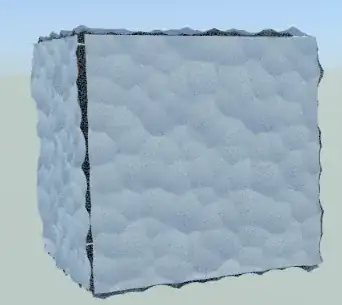
In Blender 0.5 is no displacement, 0 is inward, 1 is outward. But note that this will not displace the actual surface, it is just a Bumpmapping effect. Thus what is the 'no displacement' level is hard to tell.
To get real displacement you have to apply a 'Displace' modifier to the object. Here you can actually define what value is 'no displacement' and how sttrong the displacement is. Just make sure it is tessellated enough. Add a Subsurf modifier above for example:

The comparison of displacement in shader (left) to displacement using modifiers (right):

Edit:
As @gandalf3 mentioned in the comments, true displacement using nodes is available in cycles as an experimental feature. To activate it, first enable the 'Experimental' feature set in the rendering options:

Then go to the object data panel and set the displacement method to 'True' (1). This will give the same effect as adding a Displacement modifier to the object. To also get the fine tessellation effect of the Subsurf modifier enable 'Use Subdivition' (2). The 'Dicing Rate' controls how fine the mesh is tessellated.

However this method seems to displace the faces independently, which can lead to gaps in the surface: