If scene preparation takes a very long time, here are a few things to consider/try:
General
Before the actual rendering part starts, a few things need to happen. All the necessary data in your scene needs to be turned into its final form that will be handed off to the renderer / loaded onto the render device.
For every object, all modifiers will be applied and meshes will be triangulated. The resulting geo will be copied to the memory of the render device. Also, a BVH will be created for every object.
Any textures also need to be copied.
(disclaimer: no renderings expert, please correct in the comments if any of this is wrong)
Now, this gives us a few hints to possible optimizations. I'll focus on things concerning preparation times.
I'll start with the simple one:
1. Textures
Every texture needs to be copied, which takes time in the preparation phase. Reduce size and amount if possible. Less data = shorter times to copy.
2. Objects
Count: In general, it will be faster to have fewer objects with more polygons than many objects with fewer polygons (if both have a similar total poly count) as each object is treated separately. So, join as many objects as possible to reduce the number of objects. (You might want to keep a copy in a disabled collection, so you can go back at any time)
Modifiers: Modifiers have to be evaluated before rendering. We can take that time from the preparation stage by applying all modifiers beforehand. (Again, keep backups if you need to go back.)
Then we come to the BVH part. BVH can accelerate raytracing quite a bit and is usually a good thing, when most of the render time is actually spent rendering. But BVH building takes time. Again, fewer objects will make this faster, because a BVH will be created for every object. (please correct me if this is incorrect.) Also, we can accelerate BVH building by turning off "Use Spacial Splits" in the Performance Tab under Acceleration Structure.
This is something you'll need to try and see what the impact on overall render time is.
3. Meshes
Poly count: Again, we have the simple rule: Fewer polygons will be faster to process and to copy. A few things to watch out for are: (1) High poly background objects, that could be simplified a lot without appearing visually different in the final render. (2) Having the Subdivision Surface modifier set too high. See what the lowest setting is without affecting your result.
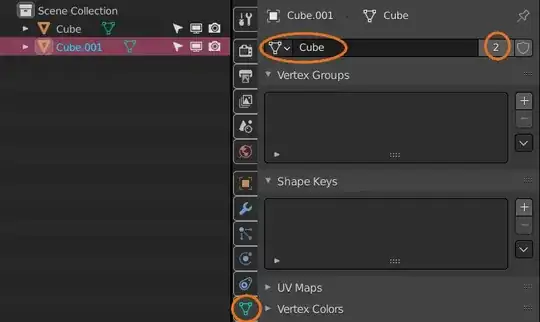
Instancing: Another way to avoid unnecessary geometry is to use instances rather than copies of meshes. This means that two equal objects use the same mesh data 'under the hood'. Therefore, the mesh will only be copied once to the renderer.
In your example, that could be a building. If the same building appears twice in the scene, you can make sure that only one instance of the mesh data is used for both of them. This happens automatically when you duplicate with Alt + D rather than Shift+D. If you already have made duplicates, you can select all objects, you want to use the same mesh and press Ctrl+L -> Object Data.
In this screenshot you can see that I have two Cube Objects using the same mesh. (The number 2 indicates the number of users of this mesh.)
4. Debugging
Sometimes, for no apparent reason, you can experience a great loss of performance by one single 'thing' that's not working correctly in your scene. So it's good to look for the cause. With more experience you'll be able to judge if a scene takes roughly the time it should take, or if something is actually wrong.
Here are things to try: Turn OFF rendering on all objects and start with one or a few and see how long it takes. If it renders quickly, add some more, and so on. You don't have to go one by one of course, the important thing is to narrow it down and find the problem.
This is by no means supposed to be a complete list, rather than a good starting point to cover the most common cases. Again, feel free to add more information.
And as always: Happy blending! ;)


