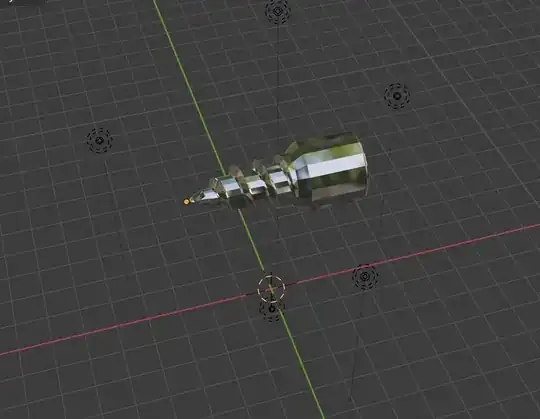
First of all, the difference between your Material Preview and the Rendered View: the preview uses HDRI images to artificially light up your scene by default, this HDRI can also be seen in reflections. You can change the settings in the dropdown menu, choose a different HDRI or change the strength etc. You can also choose to display the current Scene Lights and Scene World instead of the generated lighting.

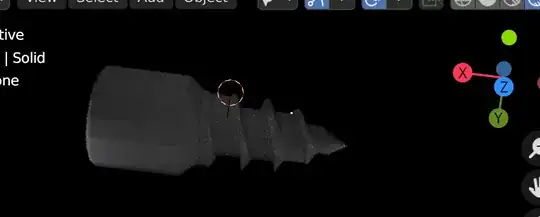
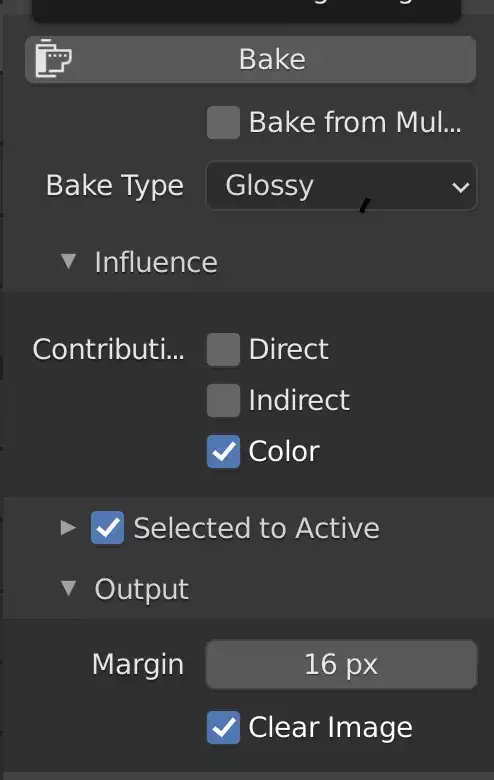
If you switch to Scene Lights and Scene World the preview would look much more like the final render. Now the problem with your render... I don't know about your bake settings and if you want/need to bake a texture, but this is definitely not necessary just for rendering an image. And if you're just baking the Color information of the Glossy channel, you only get the color, no reflections etc.
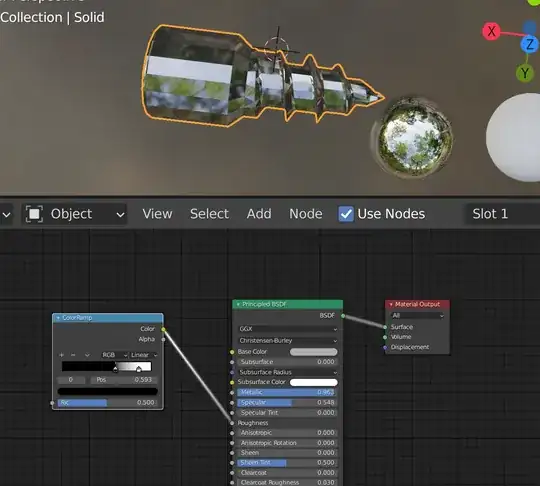
But your object and world materials have several issues. For the object, you've plugged a Color Ramp into the Roughness. Usually the Color Ramp is used to convert some input into a color distribution, where the input values from 0 to 1 reflect the positions on the range, and a slider at 0.2 means, convert the grey value 0.2 into the color which the slider is set to. IF you have no input for the Color Ramp, it's output is the medium value which is found at the position 0.5, and since your black slider is past 0.5, the output is black or 0, which means you have an overall Roughness of 0 which makes the Color Ramp obsolete.
Also the Metallic value: to get more realistic results (a material in reality is either metallic or non-metallic) you should only use 0 or 1, all values inbetween are for artistic reasons but not realistic.
If you would have set it to 1, than your object would look worse, because than it would not only be dark grey but completely black with just some bright spots maybe where your lights are reflected. Because your completely shiny metallic surface would only reflect a black environment.
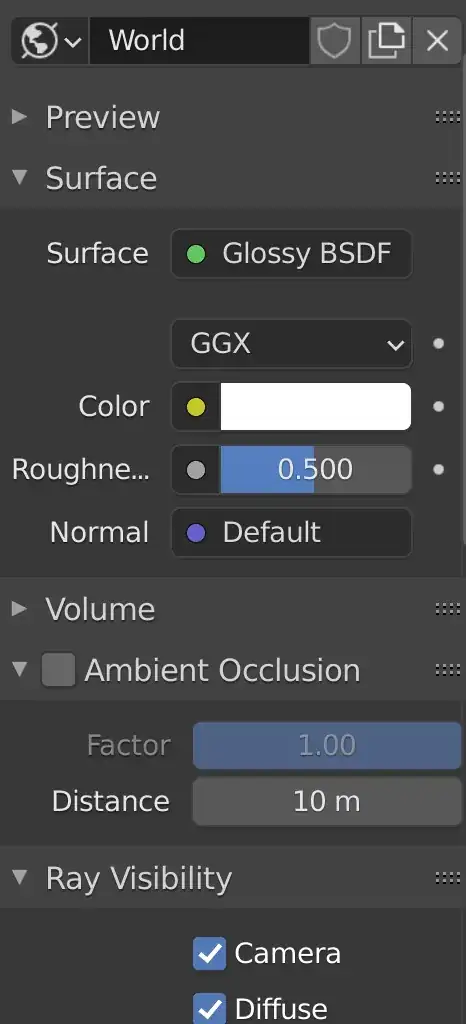
Which brings me to the issue with your world material: you've put a Glossy BSDF in there. But this doesn't emit any light which means your sky is pitch black. Usually there should be a Background shader plugged in. This has a Strength to determine how much light it will emit from the color or image texture or whatever there is. For example, just using a white color makes it less pitch black:

But of course there is still not much to reflect because it's just a plain color. If you're looking for something that's more like the preview, better use an Environment Texture instead of a color in which you load an HDRI image. You can get many for free on HDRI Haven for example. Usually HDRIs are used to generate more realistic scene lighting and create reflections when you don't have a real environment that could be reflected from your object. Since the HDRI is lighting your scene, you don't have to necessarily put extra lights in there as long as you don't need them for special reasons.

If you don't want the HDRI environment to show up behind your object like in Material Preview, go to Render Settings > Film > Transparent and enable it. By the way, you can set the the Rendered View to show what is seen in Material Preview by disabling Scene Light and Scene World in the options, but beware that an actual rendering of the camera image will show the real world settings, not the preview settings.