This red normal map is a Unity-optimized normal map. It's compressed and you need to unpack it with the UnpackNormal function.
According to this Unity forum thread, the UnpackNormal function looks like this:
inline fixed3 UnpackNormalDXT5nm (fixed4 packednormal)
{
   fixed3 normal;
   normal.xy = packednormal.wy * 2 - 1;
#if defined(SHADER_API_FLASH)
   // Flash does not have efficient saturate(), and dot() seems to require an extra register.
   normal.z = sqrt(1 - normal.x*normal.x - normal.y * normal.y);
#else
   normal.z = sqrt(1 - saturate(dot(normal.xy, normal.xy)));
#endif
   return normal;
}
inline fixed3 UnpackNormal(fixed4 packednormal)
{
#if (defined(SHADER_API_GLES) || defined(SHADER_API_GLES3)) && defined(SHADER_API_MOBILE)
   return packednormal.xyz * 2 - 1;
#else
   return UnpackNormalDXT5nm(packednormal);
#endif
}
Compression
As for compression, desktop platforms will attempt to
store it as DXT5nm format. That means that it takes the red component
of the texture and stores it in the alpha channel, then wipes the red
and the blue channel.
Normal maps are pretty sensitive so you want the best compression you
can get. DXT5 compression stores its R/G/B/A channels with 5/6/5/8
bits of accuracy, respectively. Meaning that the Green and Alpha
channels store values with higher precision than the Red and Blue
channels.
However, because a tangent space normal map should be a
normalized/unit vector (a vector with a magnitude - length - of 1.0)
and the Z component (blue channel) is never negative, you can use the
code defined in UnpackNormalDXT5nm() to reconstruct the Z component
(blue channel) if you know the values of the other two. Which means
you can store the 3 component vector using just 2 components in the
texture map, meaning you use the two highest precision channels in the
texture to store it.
This is pretty standard behaviour for desktop/console normal map
storage.
For mobile platforms, that code's a little too expensive to run just
for the sake of higher quality normal maps, so for mobile platforms
the normal map gets stored as a regular RGB texture, without the
channel swapping. That makes unpacking it a lot simpler (simply
unpacking it from 0.0 - 1.0 range into -1.0 - 1.0 range by doing
fixed3 normal = normalMap.rgb * 2 - 1;).
Unpack Normal In Blender
With this knowledge, you can create a node group with some Math and Map Range nodes to calculate the Z value from X and Y. Because it's a DirectX normal map you need additionally to invert the Y value to get Blender's OpenGL format (DirectX vs. OpenGL normal maps).
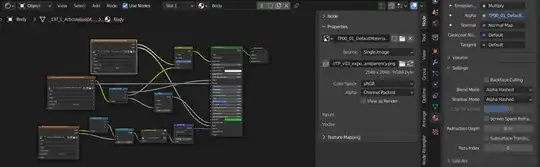
Node Group Unpack Normal Map (Unity)

Shader Nodes For The Material
 (Disclaimer: Not sure if Specular and Roughness are correctly wired.)
In the Properties of the Image Texture node, make sure the Alpha mode of the image is set to Channel Packed. And in the N-Panel > Options tab or in Material Properties > Settings set the Blend Mode and Shadow Mode to Alpha Hashed to enable transparency for Eevee and Material Preview shading mode.
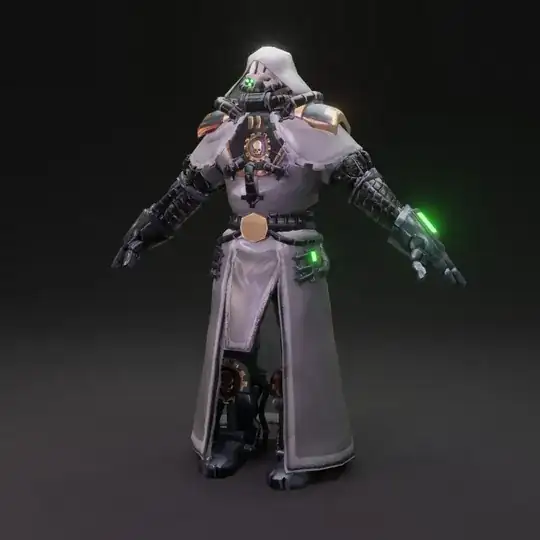
Test Render (Eevee)