I think the overall setup in Blender would look like this :
 RMB > Open image in new tab to see it enlarged

I will go through each element using the names in your first screenshots for clarity
ColorMap
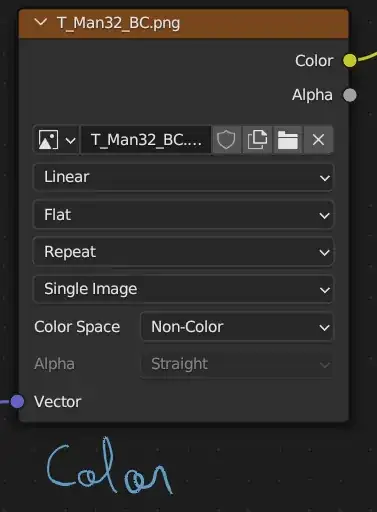
As you understood already, this one it plugged in the Base Color socket. This is the only node whose color management is "sRGB". All the other nodes must use "Non-Color".
MaskMap

Considering the name, and it being followed by different "tint" colors, I assume this one is three color masks in each RGB channel, meant to tint the base color at your wish.
In my setup, I featured only using the G channel's mask. Use the Separate RGB node to pick any mask you want, add a Mix Color map, put the base color in socket A, the mask in socket Factor, and the tint color you want in socket B. I set it up only for the G mask, but you can add the other masks with two other Mix nodes as well ; all you have to do is add two more mix nodes, plug the mask in the factor and plug the previous mix node's output to A.
TangentMap

Uses the "F" map. It looks like it covers a different part of the mesh (either via a different material assignation or more likely a different UV map?) and is plugged as TangentMap in the hair material settings, and it has nothing in its B channel, so perhaps its R and G channels are used for hair's anisotropy.
Hence, I used a UV Map node to select a different UV made for the hair that you probably already have, used a Separate Color to plug the two R and G channels in the anisotropic weight and rotation.
MetalRoughnessOccMap
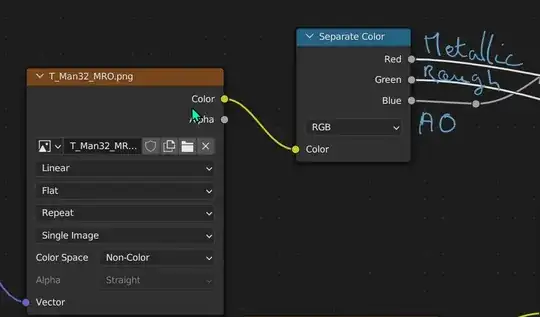
As its name indicates, it's three maps in one, each in a different RGB channel: Metallic, Roughness, and Occlusion (aka Ambient Occlusion or AO).
Use a Separate Color to isolate the channels, and plug R and G in Metallic and Roughness, respectively. AO needs to be Multiplied to the BaseColor data stream using a Mix Color node.
Normal

As you guessed, it's the normal map. Plug it in a Normal Map node and then in the Principled BSDF's Normal.


