Anytime there's a feature added to a version you want to find, look at the release notes here.
I haven't heard of that feature being in Blender itself, and I guess it would have been in the File Paths preferences otherwise (see File Paths — Blender Manual).
One indirect way to at least not use the default user/system folder is to make your installation portable.
Portable Installation
According to Installing on Windows — Blender Manual:
How to Make a Portable Installation
To keep all configuration files and installed add-ons in the executable folder, create a folder named config in the LOCAL directory of the unzipped folder.
You are supposed to do that for the zip download version of Blender on Windows, but I think it works with other installations too. In addition, you can manually copy your addons and preferences there.
It so happens that I created a script to do just this a while ago:

Open the blend file with the Blender you want to make portable, and run the script in the script editor, and it should do the trick. If you use Window > Toggle System console, it should show you in more details how it went.
That being said, Blender does use environment variables to decide where to store things, and you can use your system's tool to affect these.
Environment Variables
I have never used this for anything other than OCIO configs, so I am not 100% sure of it actually working for the rest. But according to:
You can edit your system environment variables for the user or the whole system, or make a script that runs Blender with a specific environment variable.
The available environment variables are:
| Variable |
Description |
| BLENDER_USER_RESOURCES: |
Top level directory for user files. (other BLENDER_USER_* variables override when set). |
| BLENDER_USER_CONFIG: |
Directory for user configuration files. |
| BLENDER_USER_SCRIPTS: |
Directory for user scripts. |
| BLENDER_USER_DATAFILES: |
Directory for user data files (icons, translations, ..). |
| BLENDER_SYSTEM_RESOURCES: |
Top level directory for system files. (other BLENDER_SYSTEM_* variables override when set). |
| BLENDER_SYSTEM_SCRIPTS: |
Directory for system wide scripts. |
| BLENDER_SYSTEM_DATAFILES: |
Directory for system wide data files. |
| BLENDER_SYSTEM_PYTHON: |
Directory for system Python libraries. |
| OCIO: |
Path to override the OpenColorIO config file. |
| TEMP: |
Store temporary files here. |
| TMP: |
or $TMPDIR Store temporary files here. |
The way to change environment variables is different from one system to another, so I just show examples with Windows and anyone else knowledgeable with other systems can edit my answer to add the rest.
On Windows
I think the safest option would be to create a text file, rename it with the ".bat" extension, then write the following inside:
Set BLENDER_USER_RESOURCES=C:\my\user\ressources
START "Blender 3.6.5" "C:\AppInstall\Blender\stable\blender-3.6.5\blender.exe"
This will set an environment variable and run blender with that environment variable. It doesn't impact the system whatsoever, hence is safe.
If you really want to change your system's settings, then you need to open the Environment Variables editor. To do so, hit  and search "Environment Variables", it should quickly give you what you need:

Click that to open the System Settings, and from there click the Environment Variables button.
From there, in the top portion reserved for the current user (safer than system), click New, set the name as per Blender's documentation above, and set the path as the one you want.
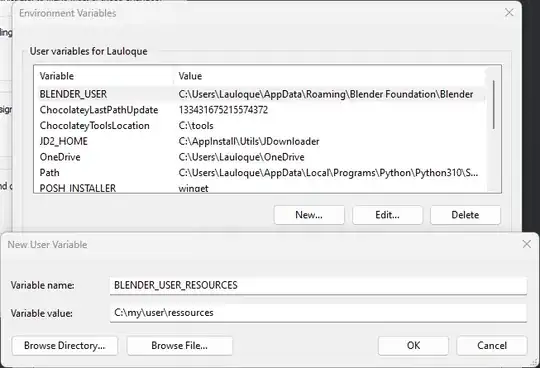
Click Ok for the three windows to validate. A reboot might be necessary.


