A couple days ago I decided to try Blender.
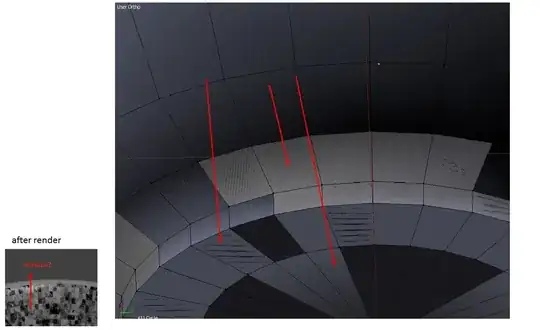
- Why on screen do some faces have a different color and some "scratches"? How do I make all of the 3d model one color?
- And after rendering I have some artifacts (see screenshot). What is the reason of this?
A couple days ago I decided to try Blender.


There are many different reasons, a few fixes:
In edit mode, Press A until everything has been selected. Press Ctrl+N, This re-calculates normals and corrects them.
Press T Inside the 3D view, and on the left you should see a button that says "Remove Doubles", click that and it could possibly fix your problem.

The explanations on how to fix this are probably correct, but here's intuition for WHY it's happening. Likely, you have accidentally duplicated your original object, but left the duplicate in the exact same location as the original. This means that the faces are "fighting" with each other for visibility (as faces are infinitesimally thin, only one face can prevail. However Blender doesn't know which face prevails) and so that's where you see the artifacts.
I believe this is referred to as "z-fighting".
Deleting the duplicated object will probably fix your issue.
