At a guess you want to select the elevator mesh then Shift-select the pivot or controller mesh. With the elevator selected and the control mesh selected and active press Ctrl P to parent the elevator to the pivot or control mesh. The first choice in the drop-down list should work: 'Object'.
However, do you need the pivot mesh? Perhaps you should use an empty object instead to control the rotation.
You can also move the center of rotation of an object. In edit mode select the front vertices of your elevator then ShiftS then U to choose "Cursor to selected". Tab out of Edit mode back into Object mode and then ShiftCtrlAltC to bring up the Set Origin dialogue and press shortcut T to move "Origin to 3D Cursor".
An absolute must-read is Witold Jaworski's excellent reference work Virtual Airplane which can be found on his site:
Virtual Aircraft
Here is a quick blend file showing one way to control a surface:
controlled_elevator.blend
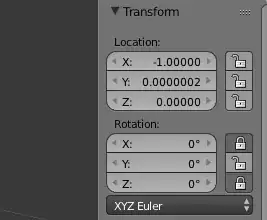
Under the Properties tag you can lock rotation in the x, y, or z axis:
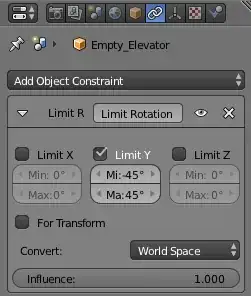
Under the Constraints tab you can limit the rotation of the controller (the empty):
As a follow-up, and keeping within the aeronautical theme, here is a link to a blend file of a variable pitch propeller, controlled with bones and drivers:
pitch_control_bones.blend


