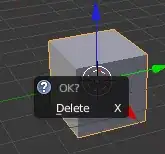
I want to delete an object. So I press the Delete button and then a menu pops up and I select vertices. But then the object still appears in the outliner. I still see "cube' there.
Asked
Active
Viewed 6.7k times

3 Answers
20
You have to delete from object from Object Mode, not Edit Mode. You can switch between Object Mode and Edit Mode using the Tab key on your keyboard. You can also switch using he drop down menu on the bottom panel of the 3d View window.Then hit delete again (Function delete on Mac) and you will be able to Delete the object entirely, it will also disappear from the outliner. If you want to delete parts of your mesh use Edit Mode, if you want to delete the entire mesh use Object Mode.
Switch to Object Mode

Now you can delete

Kiran Chava
- 3
- 2
14
Deleting in Edit mode only deletes the geometry elements of the object. Other data (Modifiers, location, rotation, etc.) is still there.
To delete an object, you need to delete in Object mode.
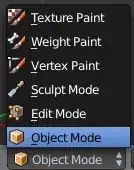
Set the mode to object mode. There are two ways to do this:
Pressing Tab toggles Edit mode. (Pressing Tab while in Edit mode switches to the last mode used before Edit mode)
Directly setting the mode to Object from the menu in the 3D view > Header:
Select the object you want to delete and press Delete or X> Delete:

For more information about modes, see the wiki:
Modes are a Blender-level object-oriented feature, which means that the whole Blender application is always in one and only one mode, and that the available modes vary depending on the selected active object’s type – most of them only enable the default Object mode (like cameras, lamps, etc.). Each mode is designed to edit an aspect of the selected object. See the Blender’s Modes table below for details.

gandalf3
- 157,169
- 58
- 601
- 1,133
-
-
3@Yppie Actually, the information provided is quite important. In Blender, the object-mesh distinction can be very useful or a total headache depending on whether or not you understand it. – wchargin Oct 23 '13 at 01:30
-
There should be some kind of in-app usage tutorial which comes with Blender and automatically runs everytime you've gone more than a month without using it. Because I forget the basics like this every freaking time (Blender is not my day job. Sometimes I just need a rough model and I need it right freaking now for whatever I'm working on, so I don't have time to ask someone else to make it, so I fire up blender and struggle with the basics for 2 hours.) – ArtOfWarfare Aug 01 '15 at 21:39
-
I still can't delete he default cube, and i'm in Object Mode. Anything else I need to check for? – Apr 16 '16 at 19:55
-
@user23775 is the cube the active object (white outline)? Right click objects to make them active – gandalf3 Apr 16 '16 at 23:53
-1
In 2021, the answer is to go into Object Mode and hit X, not the Delete key.

taco
- 99
-
5Welcome to Blender's Stack Exchange. The option to delete the object from object mode with the x-key has already been explained in the accepted answer. Please try to avoid posting duplicate answers. – Robert Gützkow Apr 08 '21 at 08:18
-
4I'm pretty sure the Delete key does delete objects, even in the latest version (2.92) – DefaultDucky Apr 08 '21 at 08:51
-
1Correct, the delete key still works. The difference is x-key asks for confirmation, delete-key doesn't. – Robert Gützkow Apr 08 '21 at 19:02
-
1Maybe it's just a problem specific to my M1 arm64 build. Not sure why my Delete key isn't working for 2.94 alpha. – taco Apr 09 '21 at 09:35
deletedidn't do anything, but as you can see in the screenshot. The other hotkey isX, which worked. – Kyle Aug 11 '16 at 17:09