Sculpt your terrain the way you want it too look. At this point do not worry about covering the entrance to your bunker. Just get the height along the sides and top where you want it.
In this picture I have my terrain set to be partially transparent so you can see the bunker entrance I covered.

Add a cube, transform it so that it sits inside the walls of the bunker entrance. Make sure that the cube extends a bit below the low point of the terrain, and above the high point. In this image my new cube is selected in orange, notice the bunker walls around it on every side.

Now select your terrain and add a boolean modifier. Set the Operation to Difference and set the Object to the cube you added in the last step.
Once you are sure that everything is set, you are not going to move the bunker entrance, and the cuter cube is in the right place, apply the boolean modifier. I always duplicate my object and move it to a different layer before applying modifiers like this
This is what it should look like after you apply the boolean modifier. The door will still be blocked off, but we will fix that next. (circled in red in the image below.)
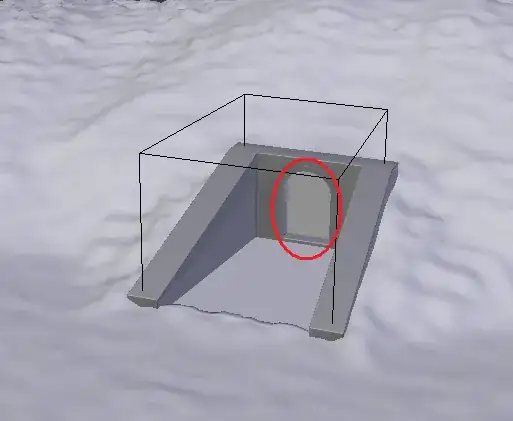
Last step, Tab into edit mode with the terrain selected. Select all the faces the boolean modifier created, Bottom sides, and any little faces on the terrain that are completely inside the entrance's walls. (you don't need any of the sides, because they are in the entrance object). When you have your selection done, press X or Delete then choose Faces.

 .
.  and the front view
  .
.