2

I'm fairly sure I'm doing something wrong and this isn't a bug, but when I installed blender from the 'blender' repository and have 2.66a running in an Ubuntu 13.10 VM, I got problems with using Python in the console.
After starting blender I get the following warnings:

Color management: using fallback mode for management
connect failed: No such file or directory

After this when I try to type in any Python commands at the terminal, nothing happens. The >>>, suggesting an interactive Python session also don't appear.

What am I doing wrong?

gandalf3
  • 157,169
  • 58
  • 601
  • 1,133
calben
  • 151
  • 6
  • Are you running the GUI-less version of Ubuntu? – CharlesL Jan 17 '14 at 17:24
  • no, the gui appears in the background – calben Jan 17 '14 at 19:52
  • Does the same thing happen if you use a portable archive from blender.org? – gandalf3 Jan 17 '14 at 20:02
  • Same thing happened. But the console I get with Shift+F4 does work. Should the interactive python environment automatically start on the terminal from which Blender is started or am I wrong in that assumption? – calben Jan 17 '14 at 20:35
  • @Kylamus No,there is no python console in the terminal from which blender is started. – gandalf3 Jan 18 '14 at 01:16
  • That'll be my problem then! What's the best way to work with the Python terminal while using Blender? Do you have any suggestions? Do most just dock a terminal at the bottom of the Blender application and work with it from there? – calben Jan 18 '14 at 02:27
  • 1
    For the colour management - read this for the console this is an option but usually you would use blenders builtin python console. The terminal you start blender from is normally used for debugging output - not interactive use. – sambler Jan 18 '14 at 04:10

1 Answers1

1

As mentioned by sambler, the terminal from which blender is started is not normally used as an interactive python console. (however it is possible)

Usually one uses the python console built into the GUI.

The python console is an editor just like the 3D view or the text editor, so you can arrange your screen layout however you like to incorporate it with your workflow.

For example:

enter image description here

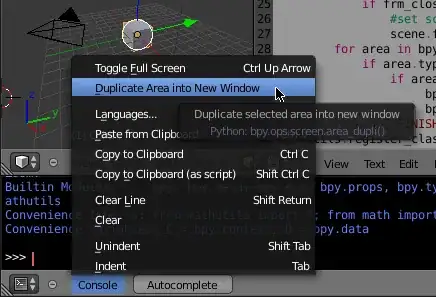
You can even split an editor into a separate window (as in the kind handled by the window manager).
This can be accomplished by pressing ShiftLMB on the area splitting corner and dragging, or by selecting the option from the editor areas menu:

enter image description here

For example:

enter image description here

Note that you probably still want the terminal from which blender was started open, as any error messages/warnings are printed to stdout and will appear there (they will not appear in the interface by default, but there is a workaround).

gandalf3
  • 157,169
  • 58
  • 601
  • 1,133