96

I want to enable GPU rendering, but there is no option in User Preferences > System:

enter image description here

Why is this? How can I get cycles to render using my GPU?

gandalf3
  • 157,169
  • 58
  • 601
  • 1,133
  • I'm using OpenSUSE 13.1 x64 with Nvidia official repo drivers installed. However, despite I bought an nvidia Geforce 650GT, stil have no GPU option available on Blender. What am I missing or doing wrong? – user3305984 May 15 '14 at 13:42
  • @user3305984 Without more info it's hard to say. This site isn't really designed for back and forth discussions (as will undoubtedly be the result of troubleshooting etc.), so you'll probably have better luck on a forum like BlenderArtists – gandalf3 May 29 '14 at 19:19
  • for Linux mint (an maybe other distros) read this also: http://blender.stackexchange.com/a/31111/1853 –  May 19 '15 at 17:33

3 Answers3

136

Ensure GPU Support

First you should make sure that you have supported Graphics cards for GPU rendering. Currently Cycles supports:

Nvidia

CUDA or Optix on Nvidia devices

Cycles only supports CUDA GPUs with a CUDA compute ability of 3.0 or higher. To use CUDA, check to make sure your GPU is on this list of CUDA capable GPUs and has a ranking of at least 3.0.

If you are running an older NVIDIA card, ie the Geforce series, support is extremely limited and these are not officially supported, see How to enable GPU rendering on older Nvidia GPUs?

AMD

Experimental support for OpenCL devices as of 2.75 (added in B7f447). If you are using an AMD/ATI graphics card, see the OpenCL section below.

As of Blender 3.0 Cycles X was introduced, and with it rendering with OpenCL on AMD GPUs has been deprecated. If you have an AMD Radeon RX 5000 Series, AMD Radeon RX 6000 Series, or AMD Radeon Pro W6000 Series, you can use the new HIP device.

Intel

As of Blender 3.3 LTS initial support for Cycles GPU acceleration on new Intel Arc dedicated line of Graphics cards has been introduced for Windows and Linux using the new OneAPI

Install Latest Drivers

If your GPU has a CUDA compute ability greater than or equal to 3.0 and you still don't have the option to enable GPU rendering, you can check a couple more things:

Below are instructions for various operating systems. If you are still having issues after trying all the steps listed in this post, try asking for support on BlenderArtists.
This site is not well suited to localized troubleshooting discussions often needed to untangle unusual hardware/driver issues.

Linux

Run as root
Due to an issue with some versions of the nvidia drivers, you must run blender (or any other program which uses cuda) as root before you can use any cuda features as a normal user. See this thread for more detail.
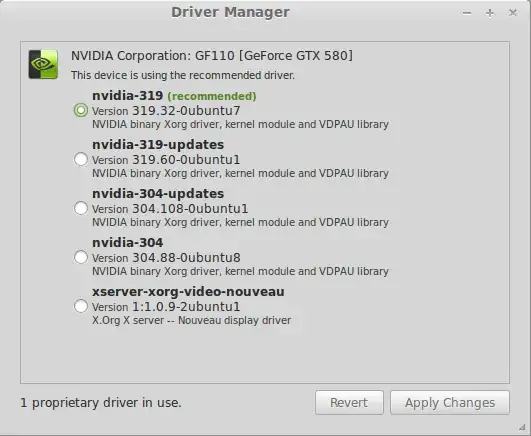
Ubuntu-based Distributions

  • Open your driver manager and select the recommended driver and Apply Changes.

enter image description here

  • You can also use the terminal to install the latest stable driver.

      $ sudo apt-add-repository ppa:ubuntu-x-swat/x-updates
        $ sudo apt-get update
      $ sudo apt-get install nvidia-current
    

For linux Mint, Ubuntu and Debian variants (and maybe other distributions) you will need to install the package nvidia-modprobe which will detect your nvidia CUDA device and make it available for blender. Read this answer for further instructions

Debian Jesse

Please note that these instructions were put together in June 2015 on Debian Jesse. Although Debian is a very stable distribution, it isn't unlikely that this will be out of date on Debian Stretch. If you have more up to date information, please feel free to edit this.

Before we can install the drivers, we will need to install the kernel headers from the contrib nonfree repository. If this repository hasn't been added already, open /etc/apt/sources.list with nano:

$ sudo nano /etc/apt/sources.list

And add:

deb http://http.debian.net/debian/ jessie main contrib non-free 

For Debian to recognize the repository, we will need to refresh the package list:

$ sudo apt-get update

Once this is done, the headers can be installed:

$ sudo apt-get install linux-headers-$(uname -r|sed 's,[^-]*-[^-]*-,,') nvidia-kernel-dkms

With some sed magic, this will install the correct headers for your version of the kernel.

Now we need to blacklist (disable) the open source nouveau driver. To do this, we will create an Xorg configuration file:

$ sudo mkdir /etc/X11/xorg.conf.d
$ sudo echo -e 'Section "Device"\n\tIdentifier "My GPU"\n\tDriver "nvidia"\nEndSection' > /etc/X11/xorg.conf.d/20-nvidia.conf

And reboot the computer.

$ reboot

All that is required afterwards, is to install cuda:

$ sudo apt-get install nvidia-cuda-toolkit

For more in depth information, please see https://wiki.debian.org/NvidiaGraphicsDrivers (only covers the drivers, not cuda). If you are running a GTX 970 or 980 you will need a special build of cuda available here.


Arch Linux

Identifying your GPU:

From the Arch wiki:

If you don't know what GPU you have, you can find out by running:

$ lspci -k | grep -A 2 -i "VGA"

Drivers and CUDA:

For Arch Linux, installing proprietary Nvidia drivers for your GPU can be as simple as installing the nvidia package and then rebooting:

# pacman -S nvidia
# systemctl reboot

If you are compiling Blender from source, you will also need the CUDA toolkit. You can get it by installing the cuda package:

# pacman -S cuda

#Windows 7

  1. Find out what GPU you have in the Device Manager. Go to Start -> Control Panel -> System and Security -> System -> Device Manager), then open the Display adapters tree.

Screenshot of Device Manager showing an NVIDIA GeForce GTX 580

  1. To find out the architecture of your Windows installation, open a command prompt (search for cmd in the start menu) and run wmic os get osarchitecture.

enter image description here

Alternatively, you can get this information from a GUI by going to Start -> Control Panel -> System and Security -> System or by using the keyboard shortcut Windows KeyPause.

Screenshot showing the architecture of Windows.

  1. Go to the Nvidia Website and select your driver.

enter image description here

  1. Finally, download and install the proper driver for your architecture. I am assuming you know how to use installers.

enter image description here

Nvidia Optimus:

If you're running Blender on a notebook with Nvidia Optimus, make sure it uses the dedicated GPU. Either configure Blender to always use the dedicated over the integrated GPU in the Nvidia Control Panel, or right-click Blender.exe (or a shortcut to Blender) and select the Nvidia GPU in the the Run with graphics processor menu:

Run with high-performance Nvidia processor (GPU)


OS X

Install the latest Nvidia Driver for you graphics card. You can download them from the Nvidia website.

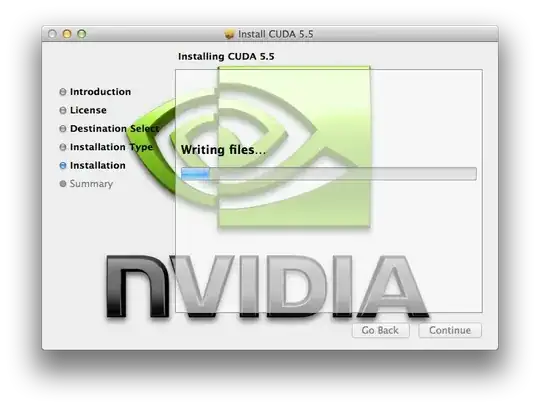
  1. Open the CUDADriver.pkg file by double clicking it.

enter image description here

  1. Go through the installer.

enter image description here

  1. If it installed correctly, there should be a new CUDA option in the System Preferences (the only time you need to go here is to install updates):

enter image description here


Finally after you have installed your drivers:

  1. Restart your computer

  2. Start Blender.

  3. There should now be an option in the Blender's settings allowing you to select CUDA and your GPU:

enter image description here

  1. Then select the GPU in Render settings > Render > Device:

enter image description here


OpenCL

As of blender 2.75, AMD HD 7xxx+ GPUs are officially supported. Other OpenCL devices may work, and can be tested by force-enabling OpenCL with an environment variable:

CYCLES_OPENCL_SPLIT_KERNEL_TEST=1

Also see Is it possible to do OpenCL rendering on Intel processors?

##Ubuntu/Debian

On Ubuntu/debian you may need to install ocl-icd-opencl-dev package

ArchLinux

Nvidia OpenCL
To get OpenCL working for nvidia GPUs, ensure that the opencl-nvidia package is installed:

# pacman -S opencl-nvidia

Then run blender with the environment variable set to 1:

CYCLES_OPENCL_SPLIT_KERNEL_TEST=1 blender

In the User Preferences > System there should now be an OpenCL option:

enter image description here

If it's selected, rendering on the GPU will now use opencl. Note that the first time you try to render, blender will have to first compile the necessary kernels which may some time.

Duarte Farrajota Ramos
  • 59,425
  • 39
  • 130
  • 187
gandalf3
  • 157,169
  • 58
  • 601
  • 1,133
  • 2
    This was on IRC yesterday: kaito: look how 'gandalf' is replying things http://blender.stackexchange.com/questions/7485/enabling-gpu-rendering-for-cycles [11:15am] Severin: that's what I call an answer – MarcClintDion Aug 25 '14 at 10:49
  • 3
    @MarcClintDion This was a team answer, credit must also go to Vader, CharlesL, CoDEmanX, and catlover2 :) – gandalf3 Aug 25 '14 at 17:55
  • maybe putting credits at the beginning of a collaboration would help clear things like that up before they happen. It works well to do this with source code. Seems like a good idea for documentation as well. – MarcClintDion Aug 25 '14 at 19:42
  • You are my hero. I needed CUDA support on my Mac for more than just Blender. I've been using OpenCL for modeling wave particle physics and I was under the impression that I just needed to wait for the next release of OS X to get proper CUDA drivers. – lukecampbell Aug 26 '14 at 01:07
  • 3
    @MarcClintDion You can always check this in the revision history. – iKlsR Sep 21 '14 at 09:29
  • I have this nvidia: http://www.geforce.com/hardware/notebook-gpus/geforce-820m/specifications In the specifications I don't see any mention of CUDA on the specs page, but it is listed here as having 2.1 Cuda compute capability: https://developer.nvidia.com/cuda-gpus I've installed all the binaries via apt-get using the ppa:ubuntu-x-swat/x-updates. Anything left for me to do? I still don't see the CUDA option in Blender. Thanks – KhoPhi Oct 15 '14 at 16:53
  • @Rexford It's hard to say, these sorts of problems are often very specific and require long discussions better suited to a forum to sort out. You could try asking on BlenderArtists or AskUbuntu, as these questions are considered off-topic here. – gandalf3 Oct 15 '14 at 19:05
  • @gandalf3 Thanks. Im trying in the blender community on google plus. I think I'll have to install something related to CUDA before i can leverage that capability of the graphics card. Will keep digging. – KhoPhi Oct 15 '14 at 19:34
  • Do NVIDIA GeForce GT610 support this and is 331.113 good driver for my GPU? – Adrians Netlis Dec 31 '14 at 23:04
  • This won't solve the problem on Debian, while it might work on derivatives. If I remember how I did it correctly, I installed my driver from the terminal, and then I installed the cuda package. I'll try to propose an edit to be looked over soon. – TARDIS Maker Apr 25 '15 at 03:27
  • I have all this done, http://blender.stackexchange.com/questions/31614/cuda-rendering-not-available?noredirect=1#comment48838_31614, but doesn't still work! – Adrians Netlis May 28 '15 at 16:46
  • @AdriansNetlis In that case try asking on blenderartists. This site isn't well suited to the long trial-and-error discussions which are often needed to sort out problems like these. – gandalf3 May 29 '15 at 03:26
  • well, found a fix - running a blender as root(cd /blender directory/, than sudo ./blender) and than it is aviable for ever even not root login! – Adrians Netlis May 29 '15 at 09:02
  • @AdriansNetlis Ah, glad you got it working. That's the second suggestion in this answer though ;) – gandalf3 May 29 '15 at 09:17
  • Oh... I didn't see that :D – Adrians Netlis May 30 '15 at 05:28
  • @gandalf3 Indeed, I finally got my gpu to show and use, but the speed was crazily too low. Just 96 cuda cores? My intel struggles with rendering even better than the gt880m. Can't wait the day cycles supports Intel. – KhoPhi Jul 16 '15 at 18:08
  • I'm having trouble getting the OpenCL render to work under OS Luna with Radeon 7750s (which should be officially supported): the GPUs simply don't show up as compute devices. I'm using the default open source drivers, do I need the closed source ones? – JMY1000 Apr 16 '16 at 07:10
  • 1
  • @gandalf3 i do not have that option Run with graphics processor when i right click on blender.exe only run as administrator where can i find that option. thanks – atek Dec 29 '16 at 07:44
  • @atek Are you using optimus? If not, that step does not apply. – gandalf3 Dec 29 '16 at 07:53
  • @gandalf3 On Xubuntu 16.04 LTS, the only thing I had to do to get the CUDA toggle was to install nvidia-cuda-toolkit. – pevinkinel Feb 27 '17 at 14:58
  • Take care, installer only builds for current kernel! Don't be surprised if you use new kernel, it also will not work with nvidia driver at all. – twicejr Mar 13 '17 at 18:56
  • 1
    So important to check that list for compatibility. My GeForce GT 525M ranks a 2.1, so there's no CUDA available for it since it is not a 3.0 or higher. I was about to try a different Linux distro! Thanks! – Coby Randal Apr 03 '20 at 19:01
  • The huge answer above was solution to some of my problems for enabling GPU for Blender with NVIDIA drivers in Ubuntu or Ubuntu-based distros, but it didn't always work on some cases. So, I wrote an article for myself that has always worked since. It has a lot of the info mentioned here, but for me it's a simple straightforward way to go: Installing NVIDIA Drivers in Linux I hope it could be of help for someone in addition to this whole thread :) – Manu Järvinen Sep 06 '18 at 15:44
7

Also note that you need to change 2 settings to enable GPU rendering. The obvious one is in the User Preferences, System. You also need to set it for the blender file (scene) by clicking on the camera icon (on the left) in the Properties window and under the Render section is a setting for Device.

lumpynose
  • 656
  • 7
  • 14
1

Sharing my recent experience with 2.8

If both, the CPU and the GPU are checked, in the "Preferences / System", Blender will prioritaze the CPU and the render will be slower.

When I unchecked the CPU, I only could see 1 "processing square" in the render time, but really fast, 1/6 of the old render total time.

I hope this help someone.