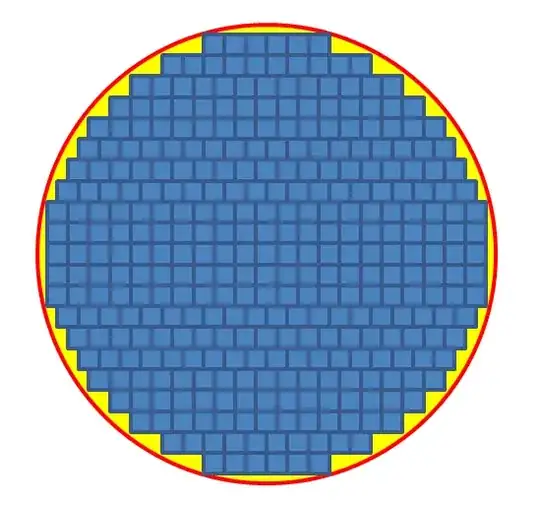
The following Excel VBA code created the image to demonstrate how to assemble an Excel graphics by adding Shape objects to the active worksheet:
Option Explicit

Sub addShapeDemo()
    Dim shape As Excel.shape
    Dim x As Single
    Dim y As Single
    Dim mx As Single
    Dim my As Single
    Dim col As Integer
    Dim cols As Integer
    Dim row As Integer
    Dim rows As Integer
    Dim d2 As Single
    Dim xMin As Single
    Dim yMin As Single
    Dim squares As Integer

    Const radius = 120.3964   '  results in 341 squares
    Const a = 11              '  square dimension

    mx = 600                  '  center of the circle
    my = 600

    '  clean our sheet from previous drawings
    On Error Resume Next
    ActiveSheet.DrawingObjects.Delete

    '  draw the circle nicely colored
    Set shape = ActiveSheet.Shapes.AddShape(msoShapeOval, Left:=mx - radius, _
                                            Top:=my - radius, Width:=2 * radius, _
                                            Height:=2 * radius)
    shape.Select
    Selection.ShapeRange.Fill.Visible = msoFalse
    With Selection.ShapeRange.Line
        .ForeColor.RGB = RGB(255, 0, 0)
        .Weight = 2.25
    End With
    With Selection.ShapeRange.Fill
        .Visible = msoTrue
        .ForeColor.RGB = RGB(255, 255, 0)
    End With

    '  draw the boxes
    rows = (2 * radius) \ a
    yMin = my - a * 0.5 * ((2 * rows) \ 2)

    For row = 1 To rows
        ' find out how many columns to place
        ' outer corner must stay within our circle
        y = yMin + (row - 1) * a
        If row <= rows \ 2 Then
            cols = (2# * ((radius * radius - (y - my) * (y - my)) ^ 0.5)) \ a
        Else
            cols = (2# * ((radius * radius - (y - my + a) * (y - my + a)) ^ 0.5)) \ a
        End If

        '  center the line
        xMin = mx - a * 0.5 * ((2 * cols) \ 2)

        For col = 1 To cols
            x = xMin + (col - 1) * a
            ActiveSheet.Shapes.AddShape msoShapeRectangle, Left:=x, _
                               Top:=y, Width:=a, Height:=a
            squares = squares + 1
        Next col
    Next row
    MsgBox squares & " squares"
End Sub


