Carl Woll's answer using CurrentValue is definitely the way to go once you know exactly what properties you want, and you want to do so programmatically.
To expand upon murray's answer using NotebookRead, and to perhaps provide an answer directed towards the title of your post, here is a method that uses NotebookRead to make a "handy dictionary" of all properties in a stylesheet, that you can then search-through using normal Mathematica search features:
FormatStyleSheet = With[
    {
     defaultNBData =
      First@Through@{NotebookRead@*Cells, NotebookClose}@
         NotebookOpen[
          FileNameJoin[
           {
            $InstallationDirectory,
            "SystemFiles",
            "FrontEnd",
            "StyleSheets",
            #
            }
           ],
          Visible -> False],
     Col = Column[#,
        Background -> {{LightBlue, LightYellow}},
        BaseStyle -> "Input",
        Alignment -> {Left, Center},
        ItemSize -> Scaled@1] &,
     CellsToNB = CreateDocument@*Cell@*CellGroupData,
     CloseGroups = Function[nb,
       SelectionMove[nb, All, Notebook];
       FrontEndExecute@FrontEndToken@"SelectionCloseAllGroups";
       SelectionMove[nb, Before, Cell]]
     },
CloseGroups@CellsToNB@ReplaceAll[
    c :
      Cell[StyleData[___, OptionsPattern@StyleData],
       definitions___] :>
     Sequence[c, Cell@BoxData@ToBoxes@Col@{
           StyleData -> OptionValue[StyleData, StyleDefinitions],
           definitions}]
    ]@defaultNBData
] &;
Usage:
FormatStyleSheet@"Default.nb"
FormatStyleSheet@"Core.nb"
Example output:
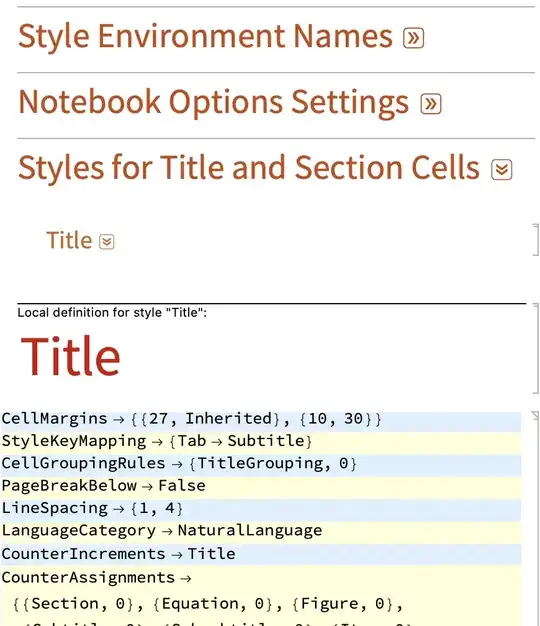
You can use the methodology in the above code (namely, NotebookRead) to get the values you want programmatically, of course, too. But I think Carl Woll's method is more direct for that.

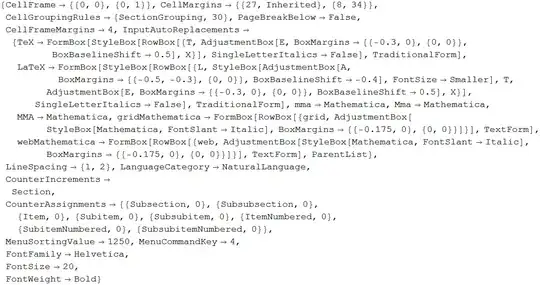


Default.nb). If necessary, choose a style from the "Choose a style" drop-down menu. Select the now-displayed cell named after that style. Now use the Option Inspector, either browsing for what you want in the outline hierarchy or else by using the Search box in the Option Inspector. – murray Nov 13 '12 at 21:59