4

So I have three matrices that represent say the R, G, and B channels of an image:

mR = RandomInteger[{0, 255}, {2, 2}];
mG = RandomInteger[{0, 255}, {2, 2}];
mB = RandomInteger[{0, 255}, {2, 2}];

I would like to add these to get an overall image made of these three channels, but I can't seem to be able to do that. Trying to understand the documentation under "Image", I tried

Image[{mR, mG, mB}, "Byte"]

but this gives me an image that's 3x2:

RGB

Also when I try

Image[{mR, ConstantArray[0, {2, 2}], ConstantArray[0, {2, 2}]}, "Byte"]

I don't get the red channel. I just get the first row of the image above with zeros everywhere else:

R

I can't understand the documentation here, and any help would be greatly appreciated!

cartonn
  • 1,005
  • 6
  • 15
  • 1
    @cartonn Should you want to, you could do it in one go with Image[RandomInteger[{0, 255}, {2, 2, 3}], "Byte"]... – cormullion Dec 19 '12 at 16:30
  • @cormullion I assumed the RandomInteger part was just to generate a MWE, and in reality the mR, mG, and mB are more complicated. – Eli Lansey Dec 19 '12 at 16:33
  • @EliLansey yes, I thought that was probably true. Still, good practice for my fingers ... :) – cormullion Dec 19 '12 at 16:42

3 Answers3

7

Use the Interleaving option for Image to specify the colors are not interleaved.

Image[{mR, mG, mB}, "Byte", Interleaving -> False]

Update:

Normally image data is in the form

imdata={
 {{r11,g11,b11}, ..., {r1m,g1m,b1m}}, (* First row of pixels *)
 {{r21,g21,b21}, ..., {r2m,g2m,b2m}}, (* Second row of pixels *)
 ...
 {{rn1,gn1,bn1}, ..., {rnm,gnm,bnm}}  (* Last row of pixels *)
}

where each {rij,gij,bij} represents Red/Blue/Green value for pixel [[i,j]] and you can just use Image[imdata]

But if you have your image data like:

red = { {r11,r12, ..., r1m}, (* Amount of red for each pixel in first row *)
        {r21,r22, ..., r2m}, (*  ... in second row *)
        ...
        {rn1,rn2, ..., rnm}  (*  ... last row *)
      }
green = (* Similarly *)
blue = (*  *)

And you want to make an Image out of this you let Mathematica know you have it in this form by the Image[{red,green,blue},Interleaving->False] option.

You can run the command ImageData[img,Interleaving->#]&/@{True,False} on an image to see the difference for a particular image, I recommend a small one.

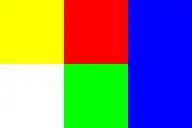
For 3 pixel wide, 2 pixel high image looking like:

Test image

imdat={
     {{1.,1.,0.},{1.,0.,0.},{0.,0.,1.}},
     {{1.,1.,1.},{0.,1.,0.},{0.,0.,1.}}
     };
{red, green, blue} = ImageData[Image[imdat], Interleaving -> False];
(* You'll now have:
  red   == {{1.,1.,0.},
            {1.,0.,0.}}
  green == {{1.,0.,0.},
            {1.,1.,0.}}
  blue  == {{0.,0.,1.},
            {1.,0.,1.}}
 *)
ssch
  • 16,590
  • 2
  • 53
  • 88
  • +1 Much better than my answer. I'd consider this the "right" way. – Eli Lansey Dec 19 '12 at 15:52
  • This works, but could you explain "interleaving" a bit more? What does it mean to have colors interleaved? The documentation is again superficial, as far as I can tell. – cartonn Dec 19 '12 at 16:42
  • @cartonn I updated the question with an explanation of the difference – ssch Dec 19 '12 at 17:03
3

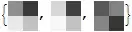
First make each one of them an image:

images = Image[ #, "Byte"]&/@{mR,mG,mB}

enter image description here

Then use ColorCombine:

ColorCombine[images, "RGB"]

enter image description here

Eli Lansey
  • 7,499
  • 3
  • 36
  • 73
3

You could also combine the data yourself before making it into an image. We want to take the three matrices and list each corresponding component together:

MapThread[List, {mR, mG, mB}, 2]

This gives a matrix of RGB triplets as required. You can then throw that at Image.

wxffles
  • 14,246
  • 1
  • 43
  • 75