Consider a binary image img as

How can I make the edges thin and smooth?
Consider a binary image img as
How can I make the edges thin and smooth?

You can get it to be a little smoother by dilating before the thinning:
img = Import["https://i.stack.imgur.com/z0Vet.png"]
Thinning[Dilation[img, 1]]


Thinning[Binarize[GaussianFilter[img, 3]]] produces very similar results with maybe slightly smoother eyes.
Riding off Bill's answer, we can smooth further by upsampling with ImageMesh, thinning, then downsampling.
img = ImageCrop[Import["https://i.stack.imgur.com/z0Vet.png"]];
imsmall = Thinning[Dilation[img, 1]];
mesh = ImageMesh[imsmall, ImageSize -> 1200,
  Background -> Black, BaseStyle -> White, Method -> "DualMarchingCubes"];
imlarge = Thinning[Dilation[Rasterize[mesh, "Image"], 12]];
res = Thinning[Binarize[ImageResize[imlarge, ImageDimensions[img]]]]

Notice one side of each feature boundary is fairly smooth. I exploit this with a very manual approach:
level1 = Thinning[EdgeDetect[FillingTransform[img]]];
level2 = Thinning[EdgeDetect[FillingTransform[Dilation[
  ImageDifference[img, GeodesicClosing[img, 14]], 1]]]];
level3 = Thinning[EdgeDetect[Dilation[
  ImageDifference[img, GeodesicClosing[img, 8]], 1]]];
res = level1 + level2 + level3

Dilation[res, 1]


Another idea is picking out the components and then approximating each component with a smooth spline. I tried with BSpline and Bezier, perhaps it can be used as a start.
img = Import["https://i.stack.imgur.com/z0Vet.png"];
components = MorphologicalComponents[img];
components // Colorize

For example, one of the components can be approximated like this:
pts = RandomSample[Position[components, 2], 100];
{dist, order} = FindShortestTour[pts];
pts = Part[pts, order];
BSplineCurve[pts, SplineDegree -> 100] // Graphics
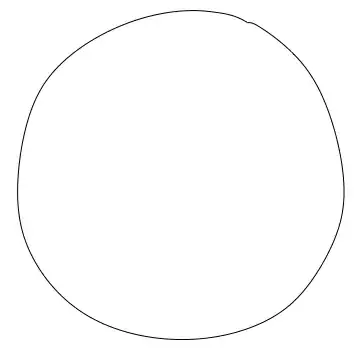
The spline degree was chosen by experimenting. The shape is not a perfect circle, but it is rather smooth. Now we do the same for the rest of the components:
smoothComponent[comp_, splineType : "Bezier" | "BSpline"] := Module[{pts, dist, order},
  pts = RandomSample[Position[components, comp], 80];
  {dist, order} = FindShortestTour[pts];
  pts = Part[pts, order];
  If[
   splineType == "BSpline",
   BSplineCurve[pts, SplineDegree -> 100],
   BezierCurve[pts, SplineDegree -> 15]
   ]
  ]

bspline = smoothComponent[#, "BSpline"] & /@ Range[2, 9];
ImageRotate[Graphics[bspline], -90 Degree]

bezier = smoothComponent[#, "Bezier"] & /@ Range[2, 9];
ImageRotate[Graphics[bezier], -90 Degree]
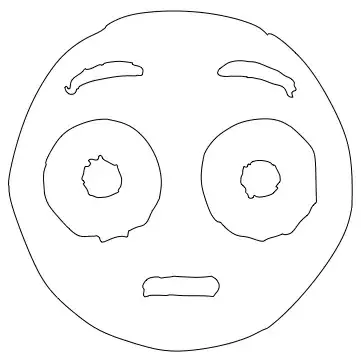
Especially the Bezier curve didn't turn out that well. I mainly wanted to show this alternative type of answer, which is different from the image processing solutions so far.
Parameters to play with: How many points to sample from each component, and what the spline degree should be for the Bezier curve and BSpline respectively.


Thinning? – Feb 28 '18 at 10:46