38

I often export images(plots, matrix, arrays, etc..) from mathematica which I end up putting in word documents or uploading to the web. The problem is that I often lose the original code and I am left only with the image representing the original output.

I was thinking/considering of using one of the libraries discusses here https://stackoverflow.com/questions/3335220/embed-text-into-png but was wondering what the Mathematica community new of any functionality built into Mathematica allowing to embed text(the code) into the image.

William
  • 7,595
  • 2
  • 22
  • 70
  • It certainly is possible — see here and here where the notebook is embedded into a GIF. That's not a solution to your question though, since the image in those GIFs are meaningless. My point is that it is possible to embed the information you seek in images... perhaps a lot more. However, you might lose it all if your application X does any sort of compression. – rm -rf May 23 '13 at 21:36
  • @rm-rf Well I generally speaking use either open office format or something .doc the old Microsoft format. I am going to look into whether or not they compress images by default. – William May 23 '13 at 21:47
  • @cormullion Thank you for the link. After seeing that I feel fairly certain that there is some way to work around the compression issues, but I am slightly concerned how that might affect the final size – William May 23 '13 at 22:16
  • If you export as e.g. EMF, the code representing the graphic will be embedded into the file. Of course, this isn't the same as the code used to generate the graphic, but I'm sure you can find a way to store some extra information in that Graphics expression. – Oleksandr R. May 23 '13 at 23:21
  • 6
    @OleksandrR. Plot[Sin[x], {x, 0, 1}, PlotLabel -> Style[#0, Transparent]] &[] :D – rm -rf May 24 '13 at 00:18
  • @rm-rf How did they manage to encode the text into the image for this example? http://meta.mathematica.stackexchange.com/questions/626/is-there-a-way-to-facilitate-the-copypaste-process-for-code-samples/632 I see the decoding code, but don't understand the exact encoding process without a link to some data. – William May 24 '13 at 03:09
  • @Liam I guess Sjoerd didn't post the encoding code, but belisarius' answer has it. In any case, those weren't actual questions/answers... they were just some ideas thrown around in meta discussions, so don't expect fully fleshed out code :) – rm -rf May 24 '13 at 03:13
  • @Liam In the linked article, Jon managed to store 70K ASCII characters in a 450x450 image, and he's stealing space rather than adding it, so the image is the same size, although slightly degraded. You could squeeze more text in if it was compressed. – cormullion May 24 '13 at 06:44
  • 1
    If image is intended for web and HTML only, you can write its code in the alt or title attribute of img tag. – BoLe May 24 '13 at 09:15
  • 3
    PNG and JPEG also support metadata, so you could write your code there. Interesting Q by the way:) – Ajasja May 24 '13 at 09:59
  • @Ajasja A quick experiment suggests that Mathematica doesn't export metadata to JPG files, but can import it from JPG files. – cormullion May 24 '13 at 13:17
  • @cormullion Aaa, same story as with HDF5 Attributes... – Ajasja May 24 '13 at 14:15
  • What goal do you want to achieve with the compatibility table you added? The criteria seem to be chosen rather haphazardly. – Sjoerd C. de Vries May 25 '13 at 22:08
  • @SjoerdC.deVries Well if nothing else, there are getting to be enough answers, that it is quiet difficult to tell what functionality each answer delivers. The table can definitely be changed, but I think most people (well at least myself) care most about what applications the images can reliably import images and export the images and extract the code. The boxes by no means need to be either Yes/No, I was thinking that could even could contain footnotes or stars * explaining what image formats you can convert between and export to keep the data. Compatibility > Hackiness of answers – William May 25 '13 at 22:33
  • @SjoerdC.deVries Would it be a bad ideas to edit the questions with the compatibility table myself? Also continuing on the last comment, I think whatever format allows people to most easily to import and export images, is probably the best solution. If the only way to get that level of compatibly is encoding a couple pixel high strip to the output image, then I am beginning to lean in that direction. – William May 25 '13 at 22:46
  • 2
    If you want to make such a table I suggest you put it in a summary section at the end of your question. I'd say it's rather uncommon, though sometimes in questions where efficiency is an issue you see timing tables pop up. – Sjoerd C. de Vries May 26 '13 at 05:38
  • I also suggest making a summary table at the end for all answers (after the initial flurry of answers) instead of updating it for each one and making minor edits, unnecessarily pushing it closer to a CW – rm -rf May 26 '13 at 18:11
  • @rm-rf I think the table formatting is about there. I wanted clickable links, so I had to do some rather weird formatting to add the links. What do you mean by CW? – William May 26 '13 at 18:29
  • @Liam CW is "Community Wiki" mode, which doesn't accrue any points for votes. When a user edits their post too many times (10, to be precise), the system sets the question and answers to this mode so that people don't keep pushing their question to the front page (every edit pushes it to the front page). In any case, I'm sure you've noticed by now that tables are not supported (especially clickable ones) and all hacks are eventually bound to break (for instance, when you change font/fontsize). – rm -rf May 26 '13 at 18:40
  • 1
    The current entries in the table are incorrect. As far as I know Photoshop doesn't read or write SVG, so the "yes" in Jens' column is incorrect. SVG can also not be converted to other formats without losing Jens' info. Another incorrect entry. My solution allows for about 4GB of code, which I would say is endless for all means and purposes. So the "no "there would seem incorrect. It can also be converted from docx (see my update). – Sjoerd C. de Vries May 26 '13 at 18:42
  • I'd suggest to add a row "image can be edited without losing metadata". – Sjoerd C. de Vries May 26 '13 at 18:45
  • @SjoerdC.deVries You are correct. I am in the process of editing it right now therefore several of them are wrong. I would prefer not to push it into a community wiki by editing it to many times. Is there a place I can post the table so other people can edit it without pushing into a Community Wiki? We could later copy back over once the answers are done and the page is mostly done. I was thinking Google docs maybe? – William May 26 '13 at 18:46
  • Could use a temporary answer and mark it as such by an appropriate heading. – Sjoerd C. de Vries May 26 '13 at 18:48
  • @SjoerdC.deVries If I edit my own question one more time (total 10 times) I believe it is going to push it into a Community Wiki. Do you mind deleting the compatibility table in the original question and just putting a link to the answer http://mathematica.stackexchange.com/q/25759#answer-25900 I am in the process of modifying and updating the compatibly table now. – William May 26 '13 at 19:02
  • I believe that all edits count towards CW, so that wouldn't work. – Sjoerd C. de Vries May 26 '13 at 19:05

7 Answers7

28

Here a quick hack for PNG images. As its Wikipedia page shows the format works with coded chunks and you can make up and insert chunk types yourself. I'm not sure how safe it is to add beyond the official end of file marker as Simon Woods suggests in his answer. It seems like a breach of the standard to me.

The following code, which more closely seems to follow the PNG standard, inserts a "mmAc" (Mathematica code) chunk before the end of file marker. A chunk consists of a four byte length coding, a four byte chunk name, the content itself and a four byte CRC32 check.

ClearAll[myGraphicsCode];

SetAttributes[myGraphicsCode, HoldFirst];

myGraphicsCode[gfun_, opts__: {}] :=
  Module[{img, pngData, extraData},
    img = Image[gfun, FilterRules[opts, Options[Image]]];
    pngData = Drop[ImportString[ExportString[img, "PNG"], "Binary"], -12];
    extraData = ToCharacterCode@Compress@Defer@gfun;
    Join[pngData, 
         IntegerDigits[Length[extraData], 256, 4], 
         ToCharacterCode@"mmAc", 
         extraData, 
         IntegerDigits[
           Hash[StringJoin["mmAc", FromCharacterCode@extraData], "CRC32"], 
           256, 4
         ], 
         {0, 0, 0, 0, 73, 69, 78, 68, 174, 66, 96, 130}
    ]
  ]

Please note that the specific capitalization of the chunk name used here is essential.

Generating the image:

Export[
  "C:\\Users\\Sjoerd\\Desktop\\Untitled-1.png", 
   myGraphicsCode[
     Plot[Sin[ x^2], {x, -3, 3}], 
     ImageResolution -> 100
   ], 
   "Binary"
]

Posting it here:
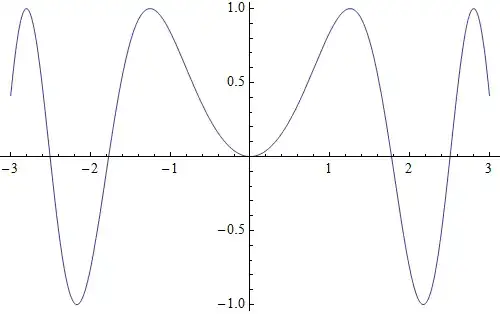
enter image description here

Getting the plot information from the image posted above:

Import["https://i.stack.imgur.com/4bEXu.png", "Binary"] /. 
   {___, a : PatternSequence[_, _, _, _], 109, 109, 65, 99, b___} :> 
  Uncompress@FromCharacterCode@Take[{b}, FromDigits[{a}, 256]]

Plot[Sin[x^2], {x, -3, 3}]

Some image editors respect the chunk, others don't. Here is a vandalized version of the above file (done in MS Paint):
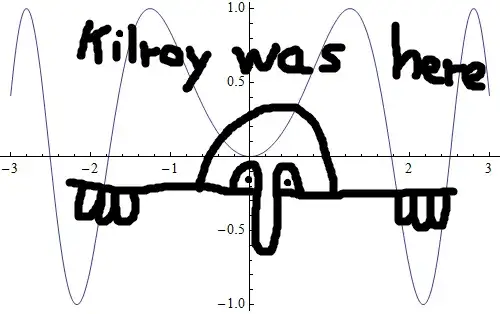
enter image description here

It still works:

Import["https://i.stack.imgur.com/eA1CS.png", "Binary"] /. 
    {___, a : PatternSequence[_, _, _, _], 109, 109, 65, 99, b___} :> 
  Uncompress@FromCharacterCode@Take[{b}, FromDigits[{a}, 256]]

Plot[Sin[x^2], {x, -3, 3}]

I tested it in Photoshop 10.0.1, but it unfortunately didn't work there.


UPDATE 1

As requested by Stefan, here a step by step explanation how it's done. I'll use an update version of the above code that I used to investigate ajasja's suggestion of using standard public chunck names instead of custom ones. This to see whether Photoshop respects those (it doesn't either).

Attributes HoldFirst is set so that I can enter plot code without having it evaluated prematurily.

ClearAll[myGraphicsCode];
SetAttributes[myGraphicsCode, HoldFirst];

I want to be able to flexible set the bitmap properties of the plot. So I allowed for the options of Image to be passed through my function.

myGraphicsCode[gfun_, opts__: {}] :=
 Module[{img, pngData, extraData},
  img = Image[gfun, FilterRules[opts, Options[Image]]];

I use ExportString to export the image as a PNG to string data. This saves me temporary file handling. The image is immediately imported again, but now as a list of bytes. Mathematica closes the PNG with a standard 12 byte sequence ({0,0,0,0} (data length)+"IEND"+CRC). I chop it off and will add it back later on.

  pngData = Drop[ImportString[ExportString[img, "PNG"], "Binary"], -12];

Here the stuff for a "iTXt" chunk (see the W3 PNG definition for details):

  extraData = 
   Join[ToCharacterCode@"iTxtMathematica code", {0, 0, 0, 0, 0}, 
    ToCharacterCode@Compress@Defer@gfun];

I wrapped the plot code with Defer so that it won't be evaluated once recovered from a file's meta data. Compress converts it to a safe character range and does some compression.

Putting it all together. IntegerDigits[value, 256, 4] turns value into 4 bytes. 4 is subtracted because the length should not include the chunk name.

  Join[pngData, IntegerDigits[Length[extraData] - 4, 256, 4], 
   extraData, 

Now, the CRC32 hash is calculated and also turned into a four-byte sequence. Note that both Photoshop and MS Paint don't seem to check this. Quicktime's ImageViewer OTOH does check it and can be used therefore to verify your code. Finally, the end marker is added back.

   IntegerDigits[Hash[FromCharacterCode@extraData, "CRC32"], 256, 4], 
   {0, 0, 0, 0, 73, 69, 78, 68, 174, 66, 96, 130}]
  ]

Code for importing the meta data:

codeFinder := {___, a : PatternSequence[_, _, _, _], Sequence @@ 
              ToCharacterCode@"iTXtMathematica code", b___} :> 
  Uncompress@FromCharacterCode@Take[{b}, {5, FromDigits[{a}, 256]}]

Import["C:\\Users\\Sjoerd\\Desktop\\Untitled-1.png", "Binary"] /. codeFinder 

Note that I import as binary. I don't want and need any image conversion. What follows is a bit of pattern matching. The core of which is the chunk name "iTXt" and the keyword "Mathematica code" that I wrote into the file earlier.

The preceding a : PatternSequence[_, _, _, _] is used to catch and name the 4 length bytes. After conversion with FromDigits again, this is used to take a precise bite out of the data from the remainder of the file that was put into b. FromCharacterCode converts it to a string again, which is then returned into readable Mathematica code by Uncompress.


UPDATE 2

I tested importing graphics from Word documents. I added the above picture to a DOCX and used the following:

Import[
  "C:\\Users\\Sjoerd\\Desktop\\Doc1.docx", 
  {"ZIP", "word\\media\\image1.png", "Binary"}
]  /. codeFinder

Plot[Sin[x^2], {x, -3, 3}]

Works without a hitch.

Internal file names used by Word can be found thus:

Import["C:\\Users\\Sjoerd\\Desktop\\Doc1.docx"]

{"[Content_Types].xml", "_rels\.rels", \ "word\_rels\document.xml.rels", "word\document.xml", \ "word\theme\theme1.xml", "word\media\image1.png", \ "word\media\image2.gif", "word\settings.xml", \ "word\webSettings.xml", "word\stylesWithEffects.xml", \ "word\styles.xml", "docProps\core.xml", "word\fontTable.xml", \ "docProps\app.xml"}

Which is where I found my PNG file imported above.

Sjoerd C. de Vries
  • 65,815
  • 14
  • 188
  • 323
  • upvote from me...very well thought out – Stefan May 24 '13 at 22:21
  • what i don't like is the code. why do you guys do not show the steps of your solution? the code golfing here is just leading to questions that could be answered already. please explain yourself. is there a need for a function when the steps could be solely explained? I'm more interested in steps not in aggregations...to assemble a function is easy enough. – Stefan May 24 '13 at 22:41
  • @stefan I'll try tomorrow. Off to bed now. – Sjoerd C. de Vries May 24 '13 at 22:43
  • 1
    Hmm, perhaps (ab)using zTXt or tEXt fields will be preserved in Photoshop as well? http://www.w3.org/TR/PNG/#11textinfo – Ajasja May 25 '13 at 07:17
  • @Ajasja I've thought of that, but there may be many tEXt fields in a file, so you would need to scan all of those for Mathematica code. Export already inserts two tEXt fields in the file. Perhaps this is just a minor inconvenience, but since I only wanted a proof of concept I opted for a private chunk name. – Sjoerd C. de Vries May 25 '13 at 08:21
  • 1
    @ajasja I tried iTXt, but no improvement in Photoshop. It seems to throw away most metadata. MSPaint still works though. – Sjoerd C. de Vries May 25 '13 at 12:44
  • @Stefan See update. – Sjoerd C. de Vries May 25 '13 at 13:31
  • @SjoerdC.deVries Would the data stay in tact if you simple displayed the image as a Graphics and then allowed the user to export the image through the right click Save As option? I am trying to test that right now, but I have little difficulty dissecting what part of the code to change. Ideally I would like to be able to copy the image into and directly out of mathematica directly into applications like Word(well LibreOffice). – William May 27 '13 at 02:57
  • @liam not clear what you mean. If you mean from Word, yes, that works. I 've tested that. From Mathematica, no, you have to add the meta information somewhere and there isn't an easy way to get into the Save as.. Menu. Or do you mean importing the png with metadata and importing that in Mathematica again and then using Save as? Anyway, I feel we're spending a bit too much time on this answer. You've got your answers and you should take it from there. – Sjoerd C. de Vries May 27 '13 at 05:26
  • @SjoerdC.deVries That's cool, thanks for the help. I think I have it about figured out, I think I can rig something using putClipboardImage from http://mathematica.stackexchange.com/questions/3081/copying-an-image-from-the-clipboard-modifying-it-and-returning-it-to-the-clipbo I'll post my finalize results somewhere so others can use it if they want. – William May 27 '13 at 05:36
23

When thinking about graphics formats that can be displayed in web browsers and also in Word, the first thing that comes to mind is a rasterized image. However, there is one alternative that makes including comments a complete no-brainer: SVG (scalable vector graphics).

The way you do it is similar to what cormullion suggested for EPS, except that EPS of course can't be used on the web. I don't have Word, but according to Google SVG can be displayed in Word. And SVG can be displayed in a resolution-independent fashion by most modern web browsers, too (because it's a vector format).

Since SVG files are plain text XML documents, comments can be included anywhere in the same way you add them to a web page, by simply enclosing them between <!-- and -->. So I do that below, to embed the plot command Plot[Sin[x], {x, 0, 2 Pi}] in the exported file.

The advantage of this format is that the inclusion of comments conforms fully to the official standard. I don't have to hack anything, or append stuff behind the end of the data stream, etc.

Edit

If you insist on exporting an Image (e.g., because the plot is a complicated Graphicds3D object), then you can still use the SVG format by simply replacing the definition of the plot p above with

p = Rasterize[Plot[Sin[x], {x, 0, 2 Pi}], "Image"];

Explanation:

The way this works is that ExportString creates the exact string representing the SVG content. Before writing this string to an SVG file with Export["filename.svg", ..., "Text"] I use StringReplace to insert the comment string directly after the SVG start tag <svg >. The comment always starts with the word ***Exported Comment*** so that it can be distinguished from other possible comments (although I don't think that Mathematica would on its own add such comments). The end of the comment is uniquely identified by a comment end tag that directly follows ***Exported Comment***. That is how I recognize the included code in the StringCases command.


Updated code as a function with additional options

Choose the function appropriate for your version of Mathematica:

Mathematica version 8:

Options[svgExport] = {"CommentString" -> "Created by Mathematica", 
   AspectRatio -> Automatic, Background -> Automatic};
Clear[svgExport];
svgExport[name_String, gr_, opts : OptionsPattern[]] := Module[
  {
   svgCode =
    StringReplace[
       ExportString[
        First@ImportString[
          ExportString[gr, "PDF", 
           Background -> OptionValue[Background]], "PDF"],
        "SVG", Background -> OptionValue[Background]
        ],
       "<svg " ->
        "<svg viewBox='0 0 " <> StringJoin[
          Riffle[#, {" ", "' "}]] <> "width='" <> #[[1]] <> 
         "' height='" <> #[[2]] <> If[
          OptionValue[AspectRatio] === Full,
          "' preserveAspectRatio='none' ", "' "
          ]
       ] &[
     ToString /@ 
      ImageDimensions[
       Rasterize[Show[gr, ImagePadding -> 0], "Image"]]]
   },
  Export[
   name,
   StringReplace[svgCode, 
    RegularExpression["(<svg\\b[^>]*>)"] :> 
     "$1" <> "\n<!-- ***Exported Comment***\n" <> 
      OptionValue["CommentString"] <> 
      "\n***Exported Comment*** -->"],
   "Text"
   ]
  ]

Mathematica version 10:

Options[svgExport] = {"CommentString" -> "Created by Mathematica", 
   AspectRatio -> Automatic, Background -> Automatic};
Clear[svgExport];
svgExport[name_String, gr_, opts : OptionsPattern[]] := 
 Module[{svgCode = 
    StringReplace[
       ExportString[
        First@ImportString[
          ExportString[gr, "PDF", 
           Background -> OptionValue[Background]], "PDF"], "SVG", 
        Background -> OptionValue[Background]], 
       "<svg " -> 
        "<svg " <> 
         If[OptionValue[AspectRatio] === Full, 
          " preserveAspectRatio='none' ", " "]] &[
     ToString /@ 
      ImageDimensions[
       Rasterize[Show[gr, ImagePadding -> 0], "Image"]]]}, 
  Export[name, 
   StringReplace[svgCode, 
    RegularExpression["(<svg\\b[^>]*>)"] :> 
     "$1" <> "\n<!-- ***Exported Comment***\n" <> 
      OptionValue["CommentString"] <> "\n***Exported Comment*** -->"],
    "Text"]]

In order to make the exported SVG compatible with external viewers when exporting from Mathematica version 8, I handle the dimensions of the graphics more explicitly by adding them to the <svg> tag in two forms: as a viewBox and as a width/height attribute. This allows the SVG to be scaled better in web browsers, and it also helps tools like ImageMagick convert recognize the image dimensions. These things are just added for convenience, and for the same reason I now treat the included "Code" as an option named "CommentString".

In Mathematica version 10.1, the viewbox is already correctly included in the Export, so that version requires fewer modifications in the exported file.


So the usage of this export function is as follows:

p = Plot[Sin[x], {x, 0, 2 Pi}];

svgExport["plot.svg", p, 
 "CommentString" -> "Plot[Sin[x],{x,0,2 Pi}]"]

(* ==> "plot.svg" *)

StringCases[Import["plot.svg", "Text"], 
 "<!-- ***Exported Comment***" ~~ Shortest[code__] ~~ 
   "***Exported Comment*** -->" -> code]

(*
==> {"
 Plot[Sin[x],{x,0,2 Pi}]
 "}
*)

Additional options for exportSVG are

  • AspectRatio -> Full to allow the SVG to scale independently in horizontal and vertical directions. This is used in another answer, where you can see the effects of this option.
  • Background -> None to suppress the default (white) background of the exported plot
Jens
  • 97,245
  • 7
  • 213
  • 499
  • uff. sometimes the most most obvious is so near...i pretty like your solution, because it is so simple and again i've to confess to missed the wood from the trees. upvote! – Stefan May 25 '13 at 06:29
  • I always forget about SVG - it never seemed to take off (probably due to Internet Explorer not supporting it). – cormullion May 25 '13 at 06:52
  • I would consider this to be the best solution, except the exported svg's don't seem to be able to be imported by Inkscape. Basically I am importing and exporting images(svgs into to Inkscape) so they can be printed out. Keeping track of all the code for each image is impossible though. – William May 25 '13 at 17:03
  • On my Mac, when I drag any SVG onto Inkscape, it opens fine, and I can print it too. Sometimes there are font problems, so you may want to adapt this font outlining approach to your graphics, or use Rasterize before exporting (as I mentioned above). Inkscape development seems to have been quite slow lately, so I don't know if there's a Windows specific problem with its import abilities. But you can also drag an SVG onto Firefox and print from there... – Jens May 25 '13 at 17:12
  • @Jens Opening the svg file does work fine. Unfortunately, if I select the svg to copy and paste into another svg file nothing happens. Additionally if I go to File->Import and select the svg nothing appears to be imported. It appears there is some sort of height issue, when importing svgs. I am looking to be able to group multiple images in the same svg file, so then they can easily be printed out. – William May 25 '13 at 19:12
  • Maybe the problem you're seeing has to do with the fact that the bounding box is wrong when importing into Inkscape. That can be fixed by specifying an explicit ImageSize in the SVG export. I'll add that to the answer. – Jens May 25 '13 at 19:30
  • Sometimes the imported SVG (when its bounding box is too large) gets pushed off to one of the corners far outside the Inkscape artboard, so you have to scroll around to find it. With the ImageSize export option, I don't see this problem and can import fine. – Jens May 25 '13 at 19:35
  • It's probably better to use Shortest[code_], just in case there are other comments in the file even though you're adding it to the end of the file before the closing tag (comments could've been added later). Alternately, you could use an end marker as ***CODE*** --> – rm -rf May 25 '13 at 19:43
  • @rm-rf Good point - better safe than sorry. I decided to just do it that way (with both ***Code*** and </svg> added at the end). – Jens May 25 '13 at 19:50
  • @Jens Yes adding the ImageSize attribute does solve the problem. Also I think it would be better to put the comment at the beginning of the file after the doctype <?xml version="1.0" encoding="UTF-8" standalone="no"?>. I see 2 reasons to do this 1) if you open the file in a text editor you immediately see the data 2) If someone edits the the svg in something like Inkscape although the comments are left in tact, the new objects get appended to the ended of the file. Having new objects appends after the comment and before </svg> breaks your current code. – William May 25 '13 at 20:08
  • 1
    Sure, that sounds reasonable. Can I leave that modification up to you, or do you want me to edit the answer? Ultimately, I'd say if someone edits an exported file externally without knowing what they're doing, there's no way to guarantee that the comments will be preserved anyway. It's the same exact thing with all the other answers. So at some point this becomes an open-ended problem. – Jens May 25 '13 at 20:30
  • OK, I've put the comment string near the beginning. I also added a lot of other features to make the SVG more compatible with other applications. In particular, I also convert text to outlines before exporting so that font problems in Inkscape and Illustrator are avoided. – Jens May 27 '13 at 06:46
13

EPS files are easily hacked in the same way that Simon's answer did for PNG. The passenger text happily sits at the end, after the %EOF marker.

text = ExampleData[{"Text", "AliceInWonderland"}];

SetOptions[OpenWrite, PageWidth -> Infinity, FormatType -> OutputForm];

StringReplace[
  ExportString[l, "EPS"], 
    {"\t" -> " ", 
     "%EOF" -> "%EOF\n%" <> text}] 
  >> "test2.eps"

and later retrieved with something like:

StringCases[Import["test2.eps", "Text"], "%EOF\n%" ~~ text__ -> text]

This is similar to a technique used by applications such as Macromedia's FreeHand, which embedded the source of the document inside the EPS rendition of it.

cormullion
  • 24,243
  • 4
  • 64
  • 133
  • 2
    it would be more natural for this data to be just a comment in the metadata section in the beginning of the eps. – joojaa Jul 23 '14 at 06:42
12

Some image file formats such as PNG and JPG can tolerate extra data at the end of the file, so you could simply write your original code into the image file. Of course this won't survive unless the file is completely unaltered - so for example loading the file into an image viewer and saving under a new name will wipe out the extra data.

I have confirmed that a Word 2010 .docx file will preserve the original file, though to get it back you have to extract it from the Word file using a zip utility rather than exporting it from within Word. I don't know if its possible with the older .doc format.

Anyway, despite the limitations I thought might be worth sharing:

attachCode[file_String, expr_] := Block[{stream},
  stream = OpenAppend[file];
  WriteString[stream, "Embedded Code:", Compress @ expr];
  Close[stream]]

extractCode[file_String] := Uncompress @ Last @ StringSplit[
    FromCharacterCode @ BinaryReadList @ file, "Embedded Code:"]

For example, attaching the evaluation notebook to a PNG image:

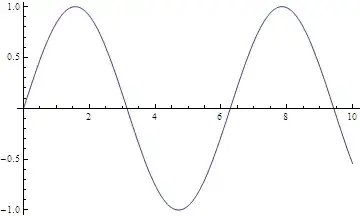
Plot[Sin[x], {x, 0, 10}]

enter image description here

Export["test.png", %];

attachCode[%, NotebookGet @ EvaluationNotebook[]]

If you download the picture above, you should be able to do this:

extractCode["AVRgu.png"] // CreateDocument
Simon Woods
  • 84,945
  • 8
  • 175
  • 324
11

Embedding Code into an Image

(Thank god there is Mr. McLoone with his creative mind)

Say for instance we have a plot:

Plot[Sin[x], {x, 0, 2 Pi}]

enter image description here

To generate an image file:

Export["~/plot.png", Plot[Sin[x], {x, 0, 2 Pi}]]; 
image = Import["~/plot.png"]; DeleteFile["~/plot.png"];

(is there a shortcut for this?)

Edit (thank you to rm -rf)

miss the wood for the trees:

image = Rasterize[Plot[Sin[x], {x, 0, 2 Pi}]];

Edit end

If we say now, that we use for every color channel the least significant bit to embed the code, we first have to create a truncated variant of the original image forcing strictly 8-bits per channel:

truncImage = BitAnd[ImageData[image, "Byte"], 2^^11111110];

Next we have to convert the code into a sequence of bits and insert each of them into those empty bits; padding the rest with zeros:

code = PadRight[
    Flatten[IntegerDigits[ToCharacterCode@Compress["Plot[Sin[x],{x,0,2Pi}]"], 2,8]],     
    Apply[Times, Dimensions[ImageData[image, "Byte"]]]];

Now we have to merge the truncated image with code:

codeImage = Image[truncImage + Fold[Partition, code, 
 Reverse@Rest[Dimensions[ImageData[image, "Byte"]]]], "Byte"];

Now the code is embedded into that image. In order to extract the code, we've to reverse the process:

secCode = FromDigits[#, 2] & /@ (Partition[
 Flatten@BitAnd[ImageData[codeImage, "Byte"], 1], 8]);

and then:

Uncompress@FromCharacterCode[secCode]

=> Plot[Sin[x],{x,0,2Pi}]

or:

Uncompress@FromCharacterCode[secCode] // ToExpression

enter image description here

Stefan
  • 5,347
  • 25
  • 32
10

Here's a way to actually embed the code as part of the image itself. First, let's find some important code we need to save:

expr = x^2 + 3;

Now compress it and turn it into a string of numbers.

cf = Compress@expr;
data = ToCharacterCode[cf]

Load in an image and embed the compressed data into the image, then save as a new image.

lena = ColorConvert[Import["ExampleData/lena.tif"], "Grayscale"];
imgData = ImageData[lena];
{r, c} = Dimensions[imgData];
imgData[[All, 1]] = N[PadRight[data, r]/255];
newLena = Image[imgData];
Export["lenaPlus.png", newLena]

If you look closely, you'll see the first column (on the left) has been changed, this is the data.

enter image description here

To get the data back, do it in reverse:

imported = Import["lenaPlus.png"];
imgData = ImageData[imported];
getCode = imgData[[All, 1]];
Uncompress@FromCharacterCode[Round[255 getCode]]

and the answer is:

3 + x^2

Of course, this isn't really ready for prime time.. to make it generally useful you'd want to embed in color images (rather than just grayscale) and you'd want to add columns to the image (rather than replacing them as above) but the essential idea is here. I would anticipate that this kind of procedure should be robust to simple reading and saving operations in any literal image format (.tif, .png, .gif, .bmp), but it would surely be destroyed in any kind of lossy compression scheme like jpg.

bill s
  • 68,936
  • 4
  • 101
  • 191
  • I don't really see any significant advantage of this over taking the least significant bit of each pixel as in: http://blog.wolfram.com/2010/07/08/doing-spy-stuff-with-mathematica/ – Ajasja May 24 '13 at 14:17
  • Ajasja - one possibile advantage would be that you do not need to change the picture (assuming you implemented adding columns instead of throwing away the first column). You could get the exact picture back by simply throwing away the added code, whereas in the link, it destroys the LSB of the image. Probably not a large advantage though. – bill s May 24 '13 at 14:23
  • 1
    @Ajasja I don't know enough about the formats, but this solution could probably be modified in some way so that the data could like be extracted even if the image is exported as a different format then is was originally imported. For example the data might likely stay intact if it is converted form png->jpeg or png->gif because they are physical pixels – William May 25 '13 at 17:06
  • 1
    @liam the data will most probably not survive a png -> jpg conversion as this is a lossy transformation. – Sjoerd C. de Vries May 26 '13 at 05:40
10

Anyone is welcome to edit this answer or the wiki question as necessary.

Compatibility Table For Answers

--------------Jens ..|..Bill ..|..Sjoerd ..|..Simon ..|..corm ..|..Stefan

no-end  | Y    | _   | Y      | Y      | _     | _ 
MSPaint | .    | Y   | Y      | .      | .     | Y  
 psd    | .    | Y   | .      | .      | .     | Y  
 svg    | Y    | .   | .      | .      | .     | _
 doc    | Y    | Y   | Y      | P      | Y     | Y  
 odp    | .    | .   | .      | .      | .     | _
convert | .    | .   | .      | .      | .     | _

Y - Yes . - No _- means unknown or uncertain

P - can't export the image using export dialog. Must extract image from format

Sjoerd - It appears Windows strips metadata when you copy and paste an image from something like a webbrowser

Name    | The image can be....
------------------------------------
no-end  | has no-end(size restriction) to the amount of data that can be encoded 
MS Paint| imported/exported from MS Paint without losing info
.psd    | imported/exported from photoshop without losing info
.svg    | imported/exported from inkscape .svg without losing info
.doc    | imported/exported from word .doc without losing info
.odp    | imported/exported form libreoffice .odp format
convert | converted to other formats (lossy or lossless) w/o losing info
William
  • 7,595
  • 2
  • 22
  • 70
  • you have to define the conversion type (SVG->JPG, PNG->JPG etc.) otherwise that row doesn't make much sense. Also, what do you mean by Photoshop import/export? Do you want to export to Photoshop's native format (PSD)? – Sjoerd C. de Vries May 26 '13 at 19:16
  • @SjoerdC.deVries I was originally going to put separate rows for different format types SVG->JPG, PNG->JPG etc. but thought putting the types in the box might work better, or asterisks * with descriptions below the table if the answers are to long. Feel free to do whatever you think we will the best. – William May 26 '13 at 19:20
  • I don't get the P in the .doc line. I can right-click the picture and do a save as... from the context menu. The metadata of the resulting picture can be extracted straight away. The direct import from within Mathematica that I demonstrated in my answer is an extra convenience, not a kludge. – Sjoerd C. de Vries May 26 '13 at 21:22
  • @SjoerdC.deVries That is what I get for just glancing over the questions. :P Fixed. – William May 26 '13 at 21:28
  • IMO it is better to put this information into the question and then flag it to be un-CWed, rather than to write an answer that isn't. BTW, I cannot understand what "no-end" means, nor "edit" (what is an "appropriate" program?). – Oleksandr R. May 27 '13 at 16:41
  • @OleksandrR. Multiple people have been edditting the table. Looking at it now the Edit at least from my understanding is basically a duplicate (and also quiet ambiguous) of the import/export lines. I will delete the line. No-end just means there is no limit to the size of the code you can embed. For example Technically metadata has a 4GB limit to its embed data. – William May 27 '13 at 16:47