8

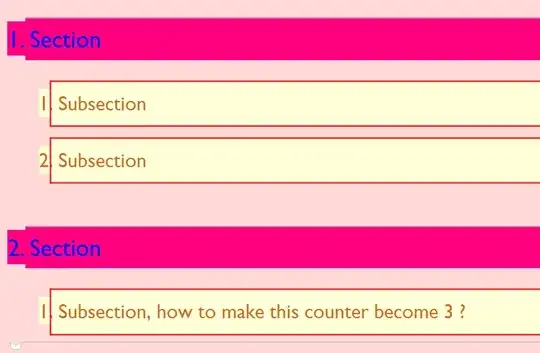
enter image description here

This is what I used in a stylesheet for Section

CellDingbat->Cell[TextData[{CounterBox["Section"], "."}]]

This is what I used in a stylesheet for Subsection

CellDingbat->Cell[TextData[{CounterBox["Subsection"], "."}]]

As you can see, the subsection counter get reset when I start a new section. How can I get the subsection counter to continue its count in the new section.

m_goldberg
  • 107,779
  • 16
  • 103
  • 257
HyperGroups
  • 8,619
  • 1
  • 26
  • 63
  • I had searched for an answer but was not able to find any information. Yes, that question was what I was looking for. – Tom De Vries Aug 21 '13 at 12:42

2 Answers2

12

The thing which resets the "Subsection" counter is the CounterAssignments option. The option includes a list of assignments, including:

{"Subsection", 0}

which just means that, beginning in that cell, the "Subsection" counter is assigned to 0 (and will be incremented to 1 beginning at the next cell).

You can use the Option Inspector to change the option on a specific Section cell, or you can change the stylesheet for the entire notebook. To change the stylesheet, choose the Format->Edit Stylesheet... menu item, then paste and interpret the following cell expression at the end of the stylesheet:

Cell[StyleData["Section"], CounterAssignments->
    {{"Subsubsection", 0}, {"Item", 0}, {"Subitem", 0}, {"Subsubitem", 0},
     {"ItemNumbered", 0}, {"SubitemNumbered", 0}, {"SubsubitemNumbered", 0}}]

This just mimics the default list for the Section style, but omitting the "Subsection" counter setting.

John Fultz
  • 12,581
  • 58
  • 73
6

By default (I mean in Default.nb style sheet) the Section style resets the subsection counter and many others, by means of the following option:

CounterAssignments->{{"Subsection", 0},{"Subsubsection", 0}, {"Item", 0}, {"Subitem", 0}, {
   "Subsubitem", 0}, {"ItemNumbered", 0}, {"SubitemNumbered", 0}, {"SubsubitemNumbered", 0}}

So, if you want some of such headings not to re-start the counter after a section, just do the following: Open the notebook's style sheet and add a Section style and then use the option

CounterAssignments->{{"Subsection", 0},{"Subsubsection", 0}, {"Item", 0}, {"Subitem", 0}, {
   "Subsubitem", 0}, {"ItemNumbered", 0}, {"SubitemNumbered", 0}, {"SubsubitemNumbered", 0}}

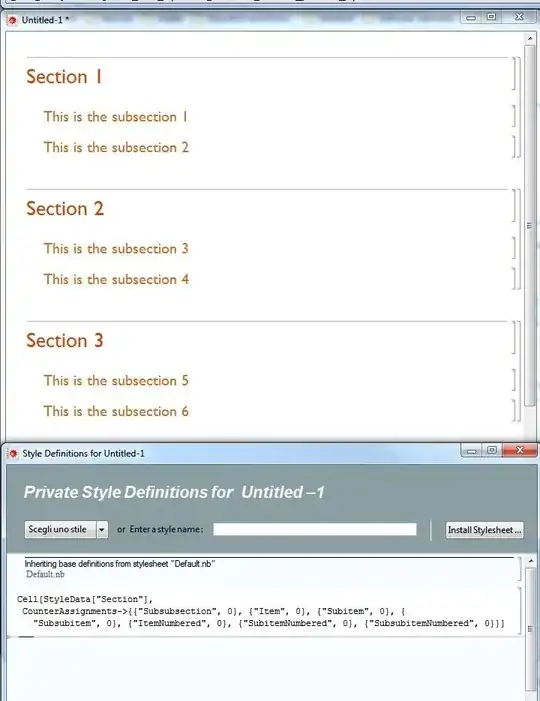
adding or removing the counters you want to modify (add a counter to reset after each Section, remove from the list to not reset). In our case, you should remove the {"Subsection", 0} from the list. Here is a picture of what you should get. enter image description here
bobknight
  • 2,037
  • 1
  • 13
  • 15
  • Exactly what I needed, and your explanation was clear and easy to follow. Answered my question perfectly, thanks very much! – Tom De Vries Aug 21 '13 at 12:40