Right click on an output image, choose magnification. There are 25%, 50%, 100% etc. But how can I set to 75%?
Asked
Active
Viewed 1,195 times
2


-
Related: How do I display imported images at actual size? – Mr.Wizard Jan 08 '14 at 08:54
4 Answers
5
I voted for both prior answers, each of which demonstrates a method to change the magnification of a graphical object. However, only the Image Option Magnification persists when the image is copied. This is because using Magnify sets the Magnification option in a StyleBox when it is rendered:
rose = Import["ExampleData/rose.gif"];

Magnify[rose, 0.75] // ToBoxes // Rest
StyleBox[Magnification -> 0.75 Inherited, StripOnInput -> False]
If you copy-and-paste the entire output Cell this StyleBox is preserved, but not if you copy only the image. Similarly using Style, except that when using Magnify the coefficient Inherited is used which makes total magnification cumulative rather than absolute:
Style[rose, Magnification -> 0.75] // ToBoxes // Rest
StyleBox[Magnification -> 0.75, StripOnInput -> False]
When the option set in Image is rendered it appears in the GraphicsBox which is preserved even when the image alone is copied:
Image[rose, Magnification -> 0.75] // ToBoxes // Rest
GraphicsBox[BaseStyle -> "ImageGraphics", ImageSize -> Magnification[0.75],
 ImageSizeRaw -> {223, 164}, PlotRange -> {{0, 223}, {0, 164}}]
An equivalent method (for Images) is to use Show rather than Image:
Show[rose, Magnification -> 0.75] // ToBoxes // Rest
GraphicsBox[BaseStyle -> "ImageGraphics", ImageSize -> Magnification[0.75],
 ImageSizeRaw -> {223, 164}, PlotRange -> {{0, 223}, {0, 164}}]
This has the advantage however of not rasterizing Graphics objects, so it is more general and less destructive:
gr = Plot[Sinc[x], {x, 0, 10}];

Image[gr, Magnification -> 0.75] // Head
Show[gr, Magnification -> 0.75]  // Head
ImageGraphics
Please also see my answer to How do I display imported images at actual size? for examples of the way the options ImageSize and Magnification interact.


4
I do not know how to do it using the menu, since this setting is not there. But you always use the Magnify command?
r=Image[ {{0, 1, 0}, {1, 0, 1}, {0, 1, 0}}]

r15 = Magnify[r, 1.5]

r75 = Magnify[r, .75]

r75 (*showing that new image will keep new magnification*)


Nasser
- 143,286
- 11
- 154
- 359
-
Thanks, but when I copy magnified image to another ranotebook, it restores its original size. So strange. – zhangwfjh Jan 08 '14 at 07:54
-
Really? I tried, but failed. You will find that dimension of image doesn't change. – zhangwfjh Jan 08 '14 at 07:58
-
3
You might do as follows. Let us take the example image from Help:
rose = Import["ExampleData/rose.gif"]
It is an image:
rose // Head

(* Image *)
Now the construct
Image[rose, Magnification -> 0.75]
gives you the expected. Compare:
{Image[rose, Magnification -> 1], Image[rose, Magnification -> 0.75]}
Should look as follows:
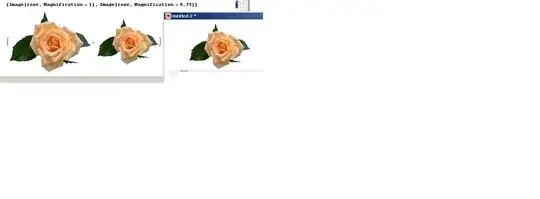 Here the first two roses represent the output of the line above, while the third rose is the result of the copy-paste of the 75%-sized one in another notebook. So its size stays 75% of the original as we see.

Alexei Boulbitch
- 39,397
- 2
- 47
- 96
1
There is a difference between resizing an image and resizing the display of the image. Consider:
r = Image[{{0, 1, 0}, {1, 0, 1}, {0, 1, 0}}];
r100 = ImageResize[r, 100];
rNot100 = Image[r, ImageSize -> 100];
rmag = Image[r, Magnification -> 33.3]
All three of the resized images r100, rNot100 and rmag look the same:

But if we check on the actual dimensions:
ImageDimensions /@ {r, r100, rNot100, rmag}
{{3, 3}, {100, 100}, {3, 3}, {3, 3}}
we can see that ImageResize changes the number of pixels in the underlying data while ImageSize and Magnification only change the displayed image. Which one you want will depend on what your goal is.

bill s
- 68,936
- 4
- 101
- 191