I want to highlight a piece of equation, click a button and have that part taken into parentheses.
Asked
Active
Viewed 689 times
19

3 Answers
21
I have this palette open all the time:

CreatePalette@Row@
  {
  Button["(\[SelectionPlaceholder])",
              FrontEndExecute[
              FrontEndToken[SelectedNotebook[], "SelectionParenthesize"]]],
  Button["[\[SelectionPlaceholder]]",
         FrontEndExecute[
         FrontEndToken[SelectedNotebook[], "SelectionBracket"]]],
  Button["{\[SelectionPlaceholder]}",
         FrontEndExecute[
         FrontEndToken[SelectedNotebook[], "SelectionBrace"]]],
  Button["\"\[SelectionPlaceholder]\"",
         With[{e = NotebookRead@SelectedNotebook[]},
              NotebookWrite[SelectedNotebook[], RowBox@{"\"", e, "\""}];
              SelectionMove[SelectedNotebook[], All, Expression, 2]]]
  }
By the way, in some text editors (e.g. Sublime Text, Texmate), when you make a selection and press a (, [, { or ", you automatically get the selection wrapped with the corresponding character. I really wish that the Mathematica editor worked like that.
UPDATE: I have simplified the code and modified the last button (wrap selection in quotes) so that the modified string is selected. This is how the other three buttons behave. I borrowed some of @halirutan answer's code in order to make this work (thanks!).

Gustavo Delfino
- 8,348
- 1
- 28
- 58
-
Is it possible to merge this with writing assistant, or make it come up every time I open mathematica? – Gappy Hilmore May 29 '15 at 13:52
-
After you run the code, select "Install Palette" from the "Palette" menu. Then, it will be very easy to open it when you need it. In regards to merging palettes: I don't know. I guess that you need to look for the writing assistant source code and modify it, but I think it is not worth the trouble. What would be great is to set a keyboard shortcut to these actions. – Gustavo Delfino Jun 10 '15 at 13:41
-
5
Please start playing with NotebookRead and NotebookWrite and look what expressions are returned when you select different things. You could use a simple button like this
Button["Print Selection", Print[NotebookRead[SelectedNotebook[]]]]
Now, you want to change you selection by putting parenthesis around it. A first very simple version looks like this:
Button["Parenthesize",
 With[{e = NotebookRead[SelectedNotebook[]]},
  NotebookWrite[SelectedNotebook[], RowBox[{"(", e, ")"}]]
  ]]

halirutan
- 112,764
- 7
- 263
- 474
1
Cross posted in community: Put parentheses around selection
Limitations and problems with .tr files made me create live templates: Live code templates
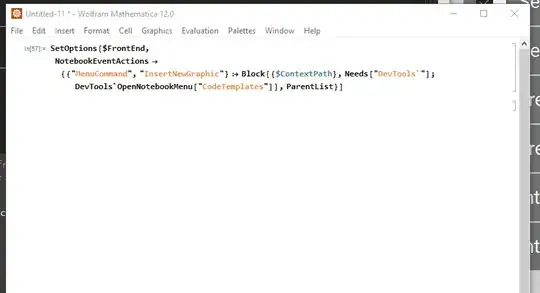
Once installed you can set package's stylesheet or add templates menu to all notebooks by:
SetOptions[$FrontEnd, NotebookEventActions -> {
     {"MenuCommand", "InsertNewGraphic"} :> Block[{$ContextPath}
        , Needs["DevTools`"]    ; DevTools`OpenNotebookMenu["CodeTemplates"]
        ]
      , ParentList
      }
    ]
and you are ready to go, with a caret just after the symbol (or when you select something) you can hit Ctrl+1 followed by ( and wrapped it is.

Kuba
- 136,707
- 13
- 279
- 740
NotebookApply. – Kuba May 29 '15 at 10:45