Our notification system alerted me this morning that one of the virtual servers in a small cluster was running out of space on one of its disks. To head off the same on the other servers and other disks, I hopped into vSphere and expanded the size of all disks on all the servers, then hopped into Server Manager to extend each volume.
For 3 of the servers, this worked like a charm, but on one server, one disk failed to extend -- the error in Server Manager was simply "Extend Failed". Logging into that server and opening Disk Management, I can see that the partition has been extended to 120 GB as it should, but the volume still has only an 80 GB capacity:

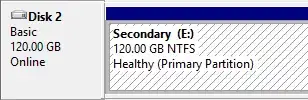
I'm less concerned with how this happened than I am with how to fix it now that it has. I can't extend it because "Extend Volume" thinks it's 120 GB, yet the volume itself thinks it is only 80 GB. Worst-case scenario I can delete and re-create the volume, but as it would take time to rebuild the data I'd prefer to avoid that option if at all possible.
How do I get my E: drive to realize that it really does have 120 GB available to it, not merely 80 GB?


Resize-Partition), and see what happens. You should, at least, get a more useful error message. – HopelessN00b Dec 12 '14 at 17:42extend filesystemin diskpart? – joeqwerty Dec 12 '14 at 17:42extend filesystemcommand -- with great success! If you want to post that as an answer I'll gladly accept it. – Kromey Dec 12 '14 at 17:46