6

I have 16 subdirectories which all contain somewhere between 1m-1.5m files each (roughly 18m files in total), but I need all the files to be in a single directory. Each file is tiny (35-100 bytes each). The total combined size of the files is relatively small - around 600mb - but it appears to be the sheer amount of them that's causing the issues.

So far I've tried:

Windows move: Didn't even get started. It said it would take 'about a day' to calculate the move. Gave up after 2 hours of calculating.

DOS move: This works great for the first 500-600k files (moving around 10k files per second), but starts to slow down noticeably as it drags towards the million mark, doing about 100 files every 2 seconds.

7Zip: I've read suggestions that zipping up the entire folder and then extracting it in the destination would be WAY quicker; however using the GUI it just crashed explorer after a few minutes; using the command line was incredibly slow (100 files every few seconds)

DOS robocopy: Having already moved ~1m files yesterday, I ran robocopy src_folder dest_folder *.log just to shift the last of what was in the first directory. It took 27 minutes to move ~12k files.

No matter what method I choose, it seems that the number of files in the destination folder is what causes the issue. If there are more than a million files in the destination, the move/copy slows to an absolute crawl regardless of the method.

Any ideas on how to achieve this that won't take days/weeks? For reference it's on a single SSD on a single machine: 64-bit, 16gb RAM, 8 threads.

indextwo
  • 177
  • I'd put money on this being a combination of two factors: NTFS being dog-slow at anything & your processes trying to hold the entire move in RAM, hence themselves going into paging before you get very far. You might need more of an iterative process to combat the 2nd. – Tetsujin Jul 06 '21 at 09:55
  • Just out of idle curiosity I tried this on macOS with an APFS SSD. I could only be bothered waiting for it to generate 100,000 small files, so a much smaller test. That took about 15 mins using a looped mkfile. For the move itself I had to use Finder as bash was going to hit the maxflies limit, so I had to drag & drop. It took about 5 minutes to enumerate the move before it started, but then completed it in about 1 minute. – Tetsujin Jul 06 '21 at 10:45
  • I also tested a version that didn't need to enumerate in the same way - dropped the folder itself from one location to another - 1 second. – Tetsujin Jul 06 '21 at 10:47
  • 1
    @Tetsujin Yeah I think it's the enumeration that's killing it. I just tried the command-line 7z - took around 50 minutes to zip up ~1m files. Moving that one file (which was only 97mb) took less than a second. Currently unpacking that in the destination folder to see how long it takes. – indextwo Jul 06 '21 at 11:12
  • 3
    @indextwo When moving files on the same partition, the files don't actually move AFAIK, their locations are simply updated in the MFT [Master File Table], so the slow down may be due to the temperature of the drive - have you checked if it's quite hot when progress begins to slow? If so, you may want to use a script and pause/sleep for a specified amount of time after doing 500K files. (FYI: moving/copying files is always faster via command line in Windows - leave the Windows Shell [explorer.exe] out of it) – JW0914 Jul 06 '21 at 11:44
  • I haven't checked the drive temp; however the last test I did with robocopy was just moving 12k files that hadn't been transferred last night into the destination folder with about 1.1m files in there, and it took a very long time, and that was after an amount of chill-out. Weirdly I can't seem to check the actual temp. through. – indextwo Jul 06 '21 at 11:58
  • @indextwo You can check drive temp via smartmontools for Windows [smartctl --scan then smartctl -a /dev/<disk>] (anything above 40C is elevated, normal is in the mid-30s or less). If needing to move this volume of files regularly, you may want to consider capturing a WIM of the main directory containing the subdirectories and files via Dism /Capture-Image or use another compressed container for them, such as .7z (it may be trial and error at first to determine the best container type to use) – JW0914 Jul 06 '21 at 12:05
  • 1
    NTFS behaves very terribly when the number of files in a folder reaches 100000s or millions. So moving all of the into a single directory is even worse – phuclv Jul 06 '21 at 13:57
  • @phuclv - NTFS behaves terribly anyway - just look at how much time it takes to install an app… watching a million small files copy over, almost slow enough to read their names sometimes. – Tetsujin Jul 06 '21 at 15:45
  • I'm remembering IBM terminal emulators needed for connecting to various IBM mainframe systems (still in use), and there were always dozens of thousands of files in the packages. While the total size of the install was a few hundred MB at most, it would take hours to copy the installers anywhere due to the sheer number of files IBM liked to produce with their development tools. I tried all of the methods you listed and none of them were really any faster than you note. Robocopy is the best, as you've already found, partly because it's pretty darn stable, and because it's scriptable. – music2myear Jul 15 '21 at 00:03

2 Answers2

2

This PowerShell script, which has been tested with many positive responses, invokes Robocopy and is much faster; simply change a few parameters [destination, etc.] and you're good to go:

$max_jobs = 10
$tstart = get-date
$log = "C:\Robo\Logs"

$src = Read-Host -Prompt 'Source path' if(! ($src.EndsWith("&quot;) )){$src=$src + "&quot;}

$dest = Read-Host -Prompt 'Destination path' if(! ($dest.EndsWith("&quot;) )){$dest=$dest + "&quot;}

if((Test-Path -Path $src )) { if(!(Test-Path -Path $log )){New-Item -ItemType directory -Path $log} if((Test-Path -Path $dest)){ robocopy $src $dest $files = ls $src

$files | %{
  $ScriptBlock = {
    param($name, $src, $dest, $log)
    $log += &quot;\$name-$(get-date -f yyyy-MM-dd-mm-ss).log&quot;
    robocopy $src$name $dest$name /E /nfl /np /mt:16 /ndl &gt; $log
    Write-Host $src$name &quot; completed&quot;
  }

  $j = Get-Job -State &quot;Running&quot;
  while ($j.count -ge $max_jobs) 
  {
   Start-Sleep -Milliseconds 500
   $j = Get-Job -State &quot;Running&quot;
  }
  Get-job -State &quot;Completed&quot; | Receive-job
  Remove-job -State &quot;Completed&quot;
  tart-Job $ScriptBlock -ArgumentList $_,$src,$dest,$log
}

While (Get-Job -State &quot;Running&quot;) { Start-Sleep 2 }
Remove-Job -State &quot;Completed&quot; 
Get-Job | Write-host

$tend = get-date

Cls
Echo 'Completed copy'
Echo 'From: $src'
Echo 'To: $Dest'
new-timespan -start $tstart -end $tend

} else {echo 'invalid Destination'} } else {echo 'invalid Source'}

JW0914
  • 7,865
  • Please quote the essential parts of the answer from the reference link(s), as the answer can become invalid if the linked page(s) change. – DavidPostill Jul 06 '21 at 10:10
  • 1
    I initiated this script a little over an hour ago, and it still hasn't actually started copying yet. It does look like it's just a recursive shell for robocopy, which I've already tried direct from the command line. – indextwo Jul 06 '21 at 11:21
0

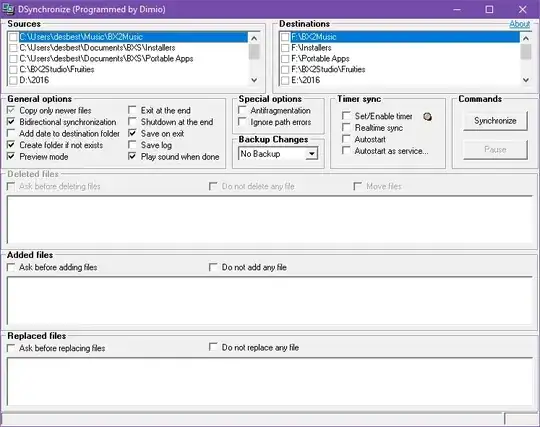
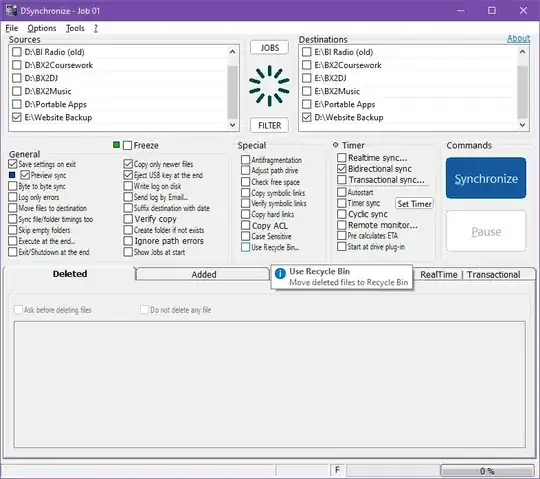
Use DSynchronise, as it's free! The reason why it's a good option for you, is that it doesn't do what Windows Explorer does by counting the amount and size every file in the queue before copying. It just copies straight away.

However you can tick the checkbox so that it will count the disk space first. You can also choose to store a backup of every file that is deleted or overwritten in advance. And you can use preview mode so you can test how the synchronise will occur before you actually do it for real.

Also keep in mind that it doesn't always copy files in alphanumerical order, so if the copying or synchronising suddenly stops halfway to your detriment, then you might have to start again from the beginning.

I find that the old version 2.30.1 is easier to use and faster than the newer version (that was 2.41.1 at the time).

dsyncrhonize 2.30.1

dsynchronize 2.41.1

desbest
  • 918