0

Four years later an I'm installing Windows 10 on a computer and having trouble with partitions, again. (and successfully forgetting what I did the last time)

Last time I was bugging that Windows installation media didn't create the same partition layout as OEM.

This time I don't see the Windows RE partition after running the installer--What's the deal?? Every page you find describes the Windows installer creating three partitions.

Here is a screenshot of Disk Management showing my Lenovo Tiny M90q comes with four partitions. You can also see the single partition that's my target for Windows 10 (500G)

enter image description here

After installing, I only see two partitions. The WinRE Recovery partition is missing:

enter image description here

See Also:

What partition needs to be dealt with to get a clean install of windows?

xtian
  • 995
  • I also don’t see an EFI partition. Did you install Windows on a secondary drive where the primary drive already had Windows installed? It’s trivial to create the WinRE yourself. – Ramhound Dec 31 '23 at 22:38
  • Windows 11 is installed on the M.2 drive (256G) from the manufacturer. I'm attempting to create a full install on the SATA bus with a new 500G SSD. This is my second install attempt. The first worked, but lacked the WinRE partition. Trivial? I guess I can shrink the main partition and look for further instructions, but I'm frustrated the installer doesn't make the three partitions as advertised from a blank disk. And I'm not installing Win10 on the same drive with Win11, if that wasn't clear from the screenshots. – xtian Dec 31 '23 at 22:47
  • Windows 10 and 11 will all install 3 partitions: UEFI, recovery , a data. Do it Windows way and it always works – John Dec 31 '23 at 23:00
  • @xtian - Remove the M.2 drive, then install Windows on the drive, this will result in your expected partitions. – Ramhound Dec 31 '23 at 23:22
  • @JW0914 - The WinRE partition isn’t required. – Ramhound Dec 31 '23 at 23:23
  • (Cont'd...) Unless the Windows install media is corrupted, there's literally no way for the installer to only create the MSR [16MB] partition and OS partition, as the partitions are created in a specific order from the auto-generated answer file and install scripts: EFI, MSR, OS, WinRE. You can recreate the same order manually by pressing Shift+F10DiskPart → Follow steps 1 - 4 under How do I configure system partitions on a new drive for applying an image? → Continue with the install – JW0914 Dec 31 '23 at 23:27
  • 1
    @JW0914 - It would be the EFI and WinRE partitions already existed on the SSD in the system which is what appears to be the case based on the screenshots provided. Would have been easier with Disk Management – Ramhound Dec 31 '23 at 23:30
  • @Ramhound Ah, I missed that – JW0914 Dec 31 '23 at 23:32
  • @Ramhound Simple is best. I remove the M.2 and three partitions sorted. This is a long time mystery solved. – xtian Jan 01 '24 at 00:27
  • @xtian - It’s not really a mystery. Unless you require the HDD to boot without the SSD then the SSD having those partitions isn’t necessary – Ramhound Jan 01 '24 at 01:04
  • @Ramhound It was my plan to have two drives on this system that work independent of the other. This is my remote system for work. While I learn WIN 11, if I screw something up and the system won't start, then I know the second drive with WIN 10 will work. I could switch without fuss. I didn't realize this condition has the consequence, at least on this system, for not making a complete installation of WIN with all partitions--I can't expect the system to run without the other drive present. I want redundancy and looks like I need to do more research to have it. – xtian Jan 01 '24 at 03:41
  • You can, if you have two EFI partitions, which are aware of the other Windows installation. – Ramhound Jan 01 '24 at 04:33
  • @Ramhound "You can, if you have two EFI partitions" If you think this is possible, maybe you'd reply to my new post? Or ...? – xtian Jan 06 '24 at 15:19
  • 1
    @xtian - Sure; You have to remove the entry for the other Windows installation from the other EFI partition. You have plenty of users helping you with your other question don’t need my help. Of course I think those users are not even remotely close to helping you they are focused on the wrong thing. – Ramhound Jan 06 '24 at 16:11

1 Answers1

0

Experimentally, it is evident the Windows 10/11 installers are aware of the existing UEFI and WinRE partitions. Logically, you don't need a second partition (except in a special case), because one UEFI partition is supposed to manage multiple boot options. So, the installer just doesn't make it.

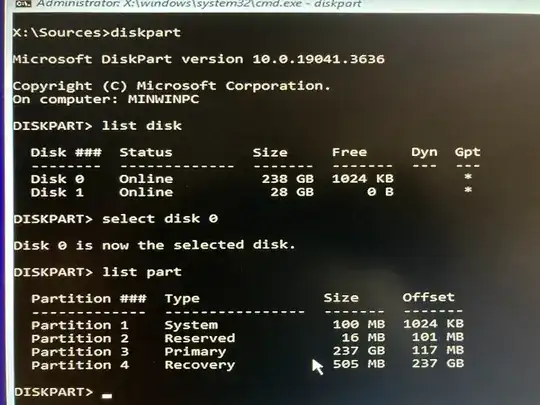
Contributing to (my) confusion is the Disk Management utility in a running Windows installation doesn't show all drive partitions. While you're booted in the installation media environment, DISKPART shows my pre-existing Windows installation has four partitions. The Windows installer also shows four partitions, but Disk Management shows only three.

So, if you run into problems and you're trying to figure out what the installer is doing to your media, and you heard "Windows installer always creates three partitions", and you're working in different runtime environments, and the Windows installer silently skips creating a partition, then you might have problems following directions.

The basic installation of Windows (observed by repetition) is really easy and quick: create installation USB media, boot to the USB, install on drive. This time I also learned Windows 11 installer is now very good at installing a second installation of Windows on another partition or another drive--provided you're not trying to preserve the drives as independent of each other.

I admit my "answer" to my own question does not have satisfying technical detail about UEFI partitions or Windows installers. I'm summarizing the consensus of the comments to answer the OP question of why "Windows 10 install media (is) not creating Recovery partition?" (because it was already there in another drive). I also think it's helpful to point out a few details of the installation process to others who also only seldom manage their own Windows hardware.
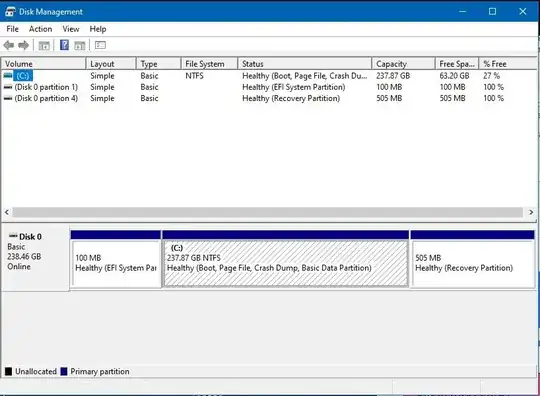
Disk Management utility. shows three partitions on drive 0

DISKPART utility. shows four partitions on drive 0

xtian
  • 995