Further elaboration on the answer of mmr:
You can use a framed box (\fbox) with a phantom number in it. The \phantom command reserves the space that its argument would take, but doesn't actually print the argument. So, for example \fbox{\Large\phantom{10}} creates a box that is the size of the number 10 in the \Large font size.
You can put this box at the end of a line using \hfill, which fills the space between the existing contents of a line before the fill command and the contents after it, for example:
\item some item\hfill\fbox{\Large\phantom{10}}
Putting the boxes at the right of the page does not always look good, especially when the text of the list items is short. To improve this you can put a minipage environment around the list with a width that is smaller than the full page, for example 0.6\textwidth. This causes \hfill to fill up to 60% of the line width instead of the full page.
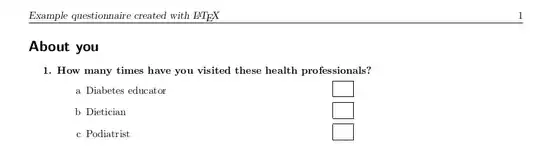
To put the box items in an alphabetically numbered list as in the screenshot from the question you can use \begin{enumerate}[label=\alph*]. The label= syntax requires the enumitem package but this is already loaded by the survey template. For consistency with the rest of the survey template you can use additional spacing settings for vertical item distance (itemsep) and left margin (leftmargin).
A full list of this type is for example as follows:
\begin{minipage}{.5\textwidth}
\begin{enumerate}[label=\alph*,itemsep=0ex,leftmargin=2.8em]
\item Diabetes educator\hfill\fbox{\Large\phantom{10}}
\item Dietician\hfill\fbox{\Large\phantom{10}}
\item Podiatrist\hfill\fbox{\Large\phantom{10}}
\end{enumerate}
\end{minipage}
To make the definitions easier to use you can define a new command for the list items (called \bignumber in the code below) and a new environment for the list as a whole (called bignumlist). In the code below the list environment has an argument that determines the width of the minipage.
MWE:
\documentclass[a4paper,10pt,BCOR10mm,oneside,headsepline]{scrartcl}
\usepackage[ngerman]{babel}
\usepackage[utf8]{inputenc}
\usepackage{wasysym}% provides \ocircle and \Box
\usepackage{enumitem}% easy control of topsep and leftmargin for lists
\usepackage{color}% used for background color
\usepackage{forloop}% used for \Qrating and \Qlines
\usepackage{ifthen}% used for \Qitem and \QItem
\usepackage{typearea}
\areaset{17cm}{26cm}
\setlength{\topmargin}{-1cm}
\usepackage{scrpage2}
\pagestyle{scrheadings}
\ihead{Example questionnaire created with \LaTeX}
\ohead{\pagemark}
\chead{}
\cfoot{}
%%%%%%%%%%%%%%%%%%%%%%%%%%%%%%%%%%%%%%%%%%%%%%%%%%%%%%%%%%%%
%% Beginning of questionnaire command definitions %%
%%%%%%%%%%%%%%%%%%%%%%%%%%%%%%%%%%%%%%%%%%%%%%%%%%%%%%%%%%%%
%%
%% 2010, 2012 by Sven Hartenstein
%% mail@svenhartenstein.de
%% http://www.svenhartenstein.de
%% \Qq = Questionaire question. Oh, this is just too simple. It helps
%% making it easy to globally change the appearance of questions.
\newcommand{\Qq}[1]{\textbf{#1}}
%% \QO = Circle or box to be ticked. Used both by direct call and by
%% \Qrating and \Qlist.
\newcommand{\QO}{$\Box$}% or: $\ocircle$
%% \Qrating = Automatically create a rating scale with NUM steps, like
%% this: 0--0--0--0--0.
\newcounter{qr}
\newcommand{\Qrating}[1]{\QO\forloop{qr}{1}{\value{qr} < #1}{---\QO}}
%% \Qline = Again, this is very simple. It helps setting the line
%% thickness globally. Used both by direct call and by \Qlines.
\newcommand{\Qline}[1]{\noindent\rule{#1}{0.6pt}}
%% \Qlines = Insert NUM lines with width=\linewith. You can change the
%% \vskip value to adjust the spacing.
\newcounter{ql}
\newcommand{\Qlines}[1]{\forloop{ql}{0}{\value{ql}<#1}{\vskip0em\Qline{\linewidth}}}
%% \Qlist = This is an environment very similar to itemize but with
%% \QO in front of each list item. Useful for classical multiple
%% choice. Change leftmargin and topsep accourding to your taste.
\newenvironment{Qlist}{%
\renewcommand{\labelitemi}{\QO}
\begin{itemize}[leftmargin=1.5em,topsep=-.5em]
}{%
\end{itemize}
}
%% \Qtab = A "tabulator simulation". The first argument is the
%% distance from the left margin. The second argument is content which
%% is indented within the current row.
\newlength{\qt}
\newcommand{\Qtab}[2]{
\setlength{\qt}{\linewidth}
\addtolength{\qt}{-#1}
\hfill\parbox[t]{\qt}{\raggedright #2}
}
%% \Qitem = Item with automatic numbering. The first optional argument
%% can be used to create sub-items like 2a, 2b, 2c, ... The item
%% number is increased if the first argument is omitted or equals 'a'.
%% You will have to adjust this if you prefer a different numbering
%% scheme. Adjust topsep and leftmargin as needed.
\newcounter{itemnummer}
\newcommand{\Qitem}[2][]{% #1 optional, #2 notwendig
\ifthenelse{\equal{#1}{}}{\stepcounter{itemnummer}}{}
\ifthenelse{\equal{#1}{a}}{\stepcounter{itemnummer}}{}
\begin{enumerate}[topsep=2pt,leftmargin=2.8em]
\item[\textbf{\arabic{itemnummer}#1.}] #2
\end{enumerate}
}
%% \QItem = Like \Qitem but with alternating background color. This
%% might be error prone as I hard-coded some lengths (-5.25pt and
%% -3pt)! I do not yet understand why I need them.
\definecolor{bgodd}{rgb}{0.8,0.8,0.8}
\definecolor{bgeven}{rgb}{0.9,0.9,0.9}
\newcounter{itemoddeven}
\newlength{\gb}
\newcommand{\QItem}[2][]{% #1 optional, #2 notwendig
\setlength{\gb}{\linewidth}
\addtolength{\gb}{-5.25pt}
\ifthenelse{\equal{\value{itemoddeven}}{0}}{%
\noindent\colorbox{bgeven}{\hskip-3pt\begin{minipage}{\gb}\Qitem[#1]{#2}\end{minipage}}%
\stepcounter{itemoddeven}%
}{%
\noindent\colorbox{bgodd}{\hskip-3pt\begin{minipage}{\gb}\Qitem[#1]{#2}\end{minipage}}%
\setcounter{itemoddeven}{0}%
}
}
%%% command for creating a box for a hand-written number
\newcommand{\bignumber}[1]{%
\item #1\hfill\fbox{\Large\phantom{10}}%
}
%%% environment for filling in numbers
\newenvironment{bignumlist}[1]{%
\begin{minipage}{#1\textwidth}
\begin{enumerate}[label=\alph*,itemsep=0ex,leftmargin=2.8em]
}
{%
\end{enumerate}%
\end{minipage}%
}
%%%%%%%%%%%%%%%%%%%%%%%%%%%%%%%%%%%%%%%%%%%%%%%%%%%%%%%%%%%%
%% End of questionnaire command definitions %%
%%%%%%%%%%%%%%%%%%%%%%%%%%%%%%%%%%%%%%%%%%%%%%%%%%%%%%%%%%%%
\begin{document}
\section*{About you}
\Qitem{ \Qq{How many times have you visited these health professionals?}
\begin{bignumlist}{0.6}
\bignumber{Diabetes educator}
\bignumber{Dietician}
\bignumber{Podiatrist}
\end{bignumlist}
}
\end{document}
Result:


\documentclass{...}and ending with\end{document}. Links to external files are discouraged because your question might become meaningless if/when the link disappears (next week, or next year, or... ). – campa Nov 15 '21 at 13:04