I recommend using minted and not lstlisting as the code is easier to copy from the PDF and run. Copying code from lstlisting produces many errors that must be fixed before the code can run. Minted has several styles, so you can chose the one you like the most for highlighting. Overleaf has a Reference guide of all the minted styles. Also, minted supports the octave language.
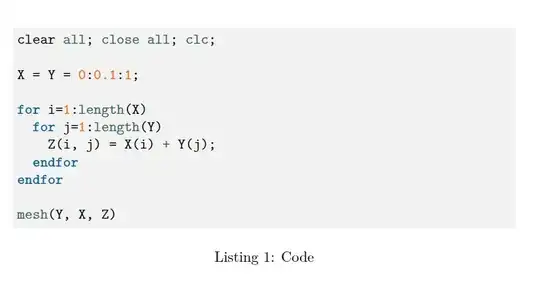
Here the code:
\documentclass[a4paper]{article}
\usepackage{minted}
\usepackage{xcolor}
\usemintedstyle{manni}
\definecolor{LightGray}{rgb}{0.95,0.95,0.95}
\begin{document}
\begin{listing}[!htb]
\begin{minted}[
bgcolor=LightGray,
breaklines,
breaksymbolleft={},
breakindent={15pt}
]{octave}
clear all; close all; clc;
X = Y = 0:0.1:1;
for i=1:length(X)
  for j=1:length(Y)
    Z(i, j) = X(i) + Y(j);
  endfor
endfor
mesh(Y, X, Z)
\end{minted}
% \inputminted[%
% firstline=,
% lastline=,
% bgcolor=LightGray,
% breaklines,
% breaksymbolleft={},
% breakindent={15pt}
% ]{octave}{Folder/file}
\caption{Code}
\label{listing:1}
\end{listing}
\end{document}
Here is the code copied from the lstlisting environment:
c l e a r a l l ; c l o s e a l l ; c l c ;
X = Y = 0 : 0 . 1 : 1 ;
for i =1: length (X)
for j =1: length (Y)
Z( i , j ) = X( i ) + Y( j ) ;
endfor
endfor
mesh(Y, X, Z)
Here is the code copied from minted environment:
clear all; close all; clc;
X = Y = 0:0.1:1;
for i=1:length(X)
for j=1:length(Y)
Z(i, j) = X(i) + Y(j);
endfor
endfor
mesh(Y, X, Z)
There are also other problems with lstlisting that does not show in this example:
- all minus signs (-) turns into hyphens (slightly longer) and must be replaced
- all multiplication signs (*) stop working for some reason and must be replaced
I once had to copy and run code from the lstlisting environment (I only had a PDF) and had fix over 100 mistakes before I could run the code. Almost all of these mistakes could have been avoided using minted instead of lstlisting.


lstlisting(lot of examples around) telling it it is Matlab code? https://tex.stackexchange.com/questions/75116/what-can-i-use-to-typeset-matlab-code-in-my-document could be helpful – Rmano Apr 20 '22 at 07:04