9

I have a beamer presentation and I want to launch a video clicking on a picture

\documentclass{beamer}
\usepackage{multimedia}
\usepackage{graphicx}
\usepackage{hyperref}
...
\href{run:C:\\Program Files (x86)\\VideoLAN\\VLC\\vlc.exe getR.avi}{\includegraphics[width=1cm,height=1cm]{Rlogo.jpg}}

When I do this I see the Rlogo.jpg but when I click on it I get "Cannot open file" How can I do this ?

EDIT: Alex solution gave an error

Here is the code

\frame{ \frametitle{une petite vidéo ;-)}
\includemedia[
  addresource=getR.mp4,
  windowed=1024x768,
  flashvars={
    source=getR.mp4
   &autoPlay=true
   &scaleMode=letterbox
  }
]{\includegraphics[width=1cm,height=1cm]{RStudio.jpg}}{VPlayer.swf}
}

Here is the slide
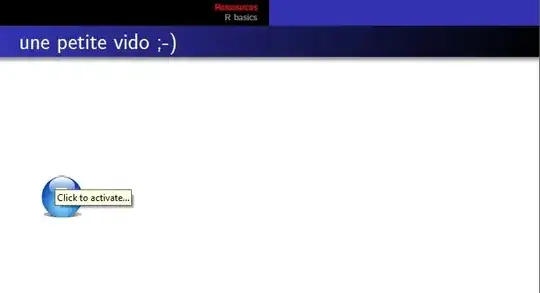
the slide


Here is the result when I click

the error when I click


Here is my package version

what miktex tells me about media9

statquant
  • 185
  • 1
  • 1
  • 9
  • 2
    Welcome to TeX.sx! Did you try / instead of \\ in the path? – egreg Mar 08 '13 at 00:15
  • 3
    Do you know that you can also read videos directly in the pdf with the media9 package? – Corentin Mar 08 '13 at 00:17
  • @egreg: yes I tried, I also created a .bat file and try to put run:mybat.bat but It failed too :( – statquant Mar 08 '13 at 00:23
  • @Corentin: salut, I know about media9 but I would like to have the video on full screen and those are .avi I think media9 embed videos and only take .swp. If I can get the same (a picture I click on that launch vlc or whatever to se the video in full screen I am happy to swap) – statquant Mar 08 '13 at 00:26
  • There is a windowed=<width in pix>x<height in pix> option with \includemedia from media9 which allows you to play the video in a detached window (requires Media9 version .ge. 0.18, 2012/12/21). Media9 takes FLV and H.264 videos, which can easily be encoded using FFmpeg or an online service. – AlexG Mar 08 '13 at 08:46
  • 3
    I'd guess the problem is caused by spaces in the path to vlc.exe. Try putting double quotes " around C:\\Program Files (x86)\\VideoLAN\\VLC\\vlc.exe; maybe you'll have to escape them by \. (Sorry, I can't test this, because I don't use Windows.) – Sašo Živanović Mar 08 '13 at 09:40
  • @AlexG: thanks, I am using windows 7, texnic center and Miktec (last versions). How can I check that I have the right media9 version and would you mind showing me an example (one liner) of how to include the video fullscreen ? – statquant Mar 08 '13 at 10:01
  • Exact fullscreen can only be achieved manually through right-click on the video and selecting Full Screen Multimedia. Automatic fullscreen is not possible for security reasons imposed by Adobe. – AlexG Mar 08 '13 at 10:07

2 Answers2

10

This doesn't exactly answer your question because VLC is not used.

With media9, a video can be configured to play in a floating window of arbitrary size rather than in an embedded fashion. The video must be either in the FLV or in the H.264 format, though. But this can be easily done using an online service or FFmpeg on the command line:

ffmpeg -i getR.avi -vcodec libx264 getR.mp4

or

ffmpeg -i getR.avi getR.flv

The video would be embedded as

\includemedia[
  addresource=getR.mp4,
  windowed=1024x768,
  flashvars={
    source=getR.mp4
   &autoPlay=true
   &scaleMode=letterbox
  }
]{\includegraphics[width=1cm,height=1cm]{Rlogo.jpg}}{VPlayer.swf}

You may want to experiment with the window size (option windowed).

The scaleMode=letterbox FlashVar ensures that the video is resized correctly, in case its aspect ratio doesn't match the one of the playback window.

Alternatively, scaleMode=none suppresses rescaling of the video and it will be shown at its natural size. No pixel interpolations will take place which otherwise might be the source of undesired artefacts.

AlexG
  • 54,894
  • 1
    just an additional question, what is VPlayer.swf for at the end how is it generated ? – statquant Mar 08 '13 at 11:49
  • @statquant I have just uploaded a new media9 version to CTAN. From now on, the floating player window will show up centred on the screen. (With MiKTeX it may take up to one week to be available, with TeXLive ... overnight.) – AlexG Mar 08 '13 at 11:58
  • @statquant: VPlayer.swf is the video player (a Flash app) that ships with media9 and which is configured via FlashVars (option flashvars). You don't need to copy it into your working directory. VPlayer.swf doesn't have control buttons, but you can pause/resume playback via mouse button down/up and via the space bar on the keyboard; seeking with arrow keys <--, -->. – AlexG Mar 08 '13 at 12:00
  • @statquant: You're welcome. Manual install is always possible (as explained in the documentation), but I think it is not worth it. At present, the floating video window is positioned top left on the screen. So it makes no difference if it is big enough. Only make sure you did a package update with the MiKTeX package manager recently. – AlexG Mar 08 '13 at 12:37
  • OUch not working I updated my post – statquant Mar 08 '13 at 19:40
  • @statquant: Maybe something is wrong with getR.mp4. Try random.mp4 from the media9 package installation to check that everything else is ok. – AlexG Mar 09 '13 at 06:08
  • Damn it works with random, It means that I have problems with my videos ? They are playing fine on VLC and media player though... I am a bit puzzled :( – statquant Mar 09 '13 at 13:15
  • @statquant wrong codec i would say. Try flv instead. – AlexG Mar 09 '13 at 14:20
  • Ok indeed flv works fine, but the quality looks much lower, even if I set it to max. (from a 30Mo .avi I go to 1Mo flv), I can look for a better converter I guess but it's too bad – statquant Mar 09 '13 at 14:56
  • Ok I finally found a good compromize, Camstudio with highest quality write .avi that I convert with Media Converter to flv.

    Last question Alex, when the video is on, can I pause ? and can I quit and go directly back to the pdf, at the moment I click on the X at top right and click back to the presentation but it's not very responsive

    – statquant Mar 09 '13 at 18:10
  • @statquant: I'd close or minimize the video by right-click on the video and chose from the context menu. (It is easier than targetting the X). – AlexG Mar 10 '13 at 16:50
  • Ok, but then It might be easier to place the video in small just above the picture as I have to use the mouse anyway, can I specify where the video is gonna appear on the screen ? – statquant Mar 10 '13 at 18:17
  • @statquant: not yet. I might add an optional @<position> to the window dimensions, where <position> would be something like center, topleft, bottomcenter, etc. Exact pixel positions would be futile as you never know the screen resolution and the page zoom beforehand. – AlexG Mar 11 '13 at 07:53
9

Over Windows, you can just write the path of the video file

\href{run:C:\\Users\\yourname\\yourfolder\\getR.avi}{\includegraphics[width=1cm,height=1cm]{Rlogo.jpg}}

without any other packages like \usepackage{multimedia} or others. The video will run using the standard multimedia program of your operative system Windows.

karlkoeller
  • 124,410
cyansea
  • 91
  • Welcome to TeX.SX! You can have a look at our starter guide to familiarize yourself further with our format. – karlkoeller Aug 19 '13 at 08:51
  • 1
    The text after run: is used in a file specification (see PDF specification). AFAIK the first argument of \href should read run:/c/Users/yourname/yourfolder/getR.avi. (But it also might depend on the PDF viewer.) – Heiko Oberdiek Aug 19 '13 at 09:17