4

I consider posting some materials as .jpg file on my blog which produced from a .tex document.

This document includes lots of sections which is about 1500-2300 words. I need neither header nor page number. I can also accept the endnotes.

I want each .jpg file corresponded with just a whole section, as shown by follow images. (The images were transformed from a .pdf file.)


page i (also section 1)
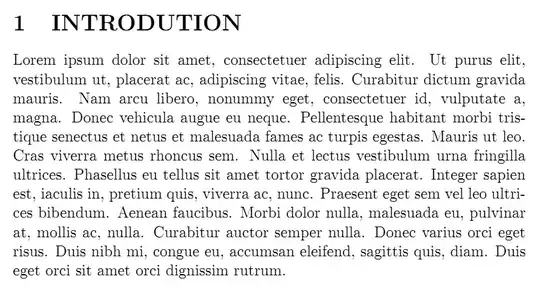
enter image description here


page ii (also section 2)

enter image description here


page iii (also section 3)

enter image description here


But, I failed on trying to change the page's height on each page. It is seem that the entire document could set only a fixed page size. I think maybe the requirement can be implemented by

  1. On the beginning of every section, put a \newpage command.

  2. Set a sufficient page height value (as we known, the page size of a .tex file can be several meter long).

  3. Typeset the file, record (using some technique) the total length of vbox at the end of current page.

  4. Use the record value to set a new page height.

  5. typeset again, but just typeset the section I needed.

Does above said describe a right way? Could someone tell me how to implement it automatically?

Or is there a more convenient way to achieve the result?


EDIT:

Hi Chris H, the preview package suppressed the setting of\lineskiplimit or/and \lineskip. Try the code below

documentclass{book}

\usepackage[

active, %if annotate the line obtain fig 1

tightpage]{preview}\setlength{\PreviewBorder}{9pt}

\begin{document}

\setlength{\lineskiplimit}{9pt}\setlength{\lineskip}{9pt}

\begin{preview}

\begin{flushleft}

\fbox{It attempt to compare nil with number}

\fbox{It attempt to compare nil with number}

\end{flushleft}

\end{preview}

\end{document}

obtain fig 2.

fig 1

enter image description here

fig 2

enter image description here

So, the substances in each section would be inappropriate.

user41022
  • 157
  • It may be possible to set an arbitrarily long page size (whatever the maximum is), then use pdfcrop (or imagemagick, which you may well be using anyway for the pdf-jpg conversion, to crop the resulting pdf). Unfortunately the standalone documentclass ignores \newpage, otherwise it would be your friend here. – Chris H Nov 14 '13 at 09:39
  • @ChrisH your strategy appears sound, but why then standalone? One only needs to remove the footline with the page numbers with \pagestyle{empty} and \thispagestyle{empty} on the first page (article class). Then one can use pdfcrop and finally gs with its jpeg device (or rather png16m or variants for .png images). [only trouble will be with footnotes...] –  Nov 14 '13 at 13:25
  • @jfbu I've refined it to just use preview. I hadn't considered footnotes, I must admit - I don't know if they're an issue here. One advantage of preview is that it's a simpler workflow than going thorugh pdfcrop as well (generating the "right" pdf then converting it seems more elegant than having to optically crop it. – Chris H Nov 14 '13 at 13:28
  • 1
    @ChrisH yes and I upvoted. But preview requires more manual mark-up than \clearpage. (and I don't know if it acts as an environment, in that case it would create a group, which could be annoying. But I should check the doc first). –  Nov 14 '13 at 13:30
  • @jfbu do you know how quickly/happily pdfcrop would handle a very long page? I can't test it here without some effort in sorting issues with paths and various software versions. Standalone also has a .png option (which I only discovered while reading the documentation to write the answer to this Q - then I didn't use it) – Chris H Nov 14 '13 at 13:35
  • @ChrisH I just tried pdfcrop on a file with \usepackage[paperheight=200cm]{geometry}, the first page with 40 lipsum paragraphs and a footnote, the second with only a word. And page numbers removed. pdfcrop handled that instantly. I don't know for real-life situations... and by the way, preview does create groups. –  Nov 14 '13 at 13:42
  • Thanks @jfbu, your alternative solution deserves as much attention as my answer - it's worth my vote at least if you put in it an answer and let the OP choose the more suitable solution. – Chris H Nov 14 '13 at 13:48
  • @ChrisH your method with preview has the advantages you mentioned about a faster workflow once the mark-up is done; let's see what the OP says, if he is satisfied with it, that's the answer! –  Nov 14 '13 at 15:00
  • @jfbu Hi, I have edited the question again. There have some problems with preview package (the adjoining lines are too closed). Would you care for pasting your answer via "standalone" package on? – user41022 Nov 16 '13 at 13:24
  • @user41022 will you have footnotes and do you need a footer with page numbers? –  Nov 16 '13 at 13:42
  • @jfbu I need neither header nor page number. I can also accept the endnotes. (But I meet some problems with mpfootnote and footnote counter. Even I load the endnotes package, it will still be a problem. Could you tell me how to make the mpfootnote counter cooperated with footnote counter? See my another question http://tex.stackexchange.com/questions/145304/improper-symbol-mark-of-footnote-in-minipage-environment) – user41022 Nov 17 '13 at 04:55
  • @user41022 I don't know about mpfootnote. I have added an answer with the workflow sketched in previous comments. It uses neither standalone nor preview. –  Nov 17 '13 at 09:20

2 Answers2

3

My previous comment considered using the standalone documentclass. That uses the preview package. Going directly to preview gives a solution:

\documentclass{article}
\usepackage{lipsum}
\usepackage[active, tightpage]{preview}

\begin{document}
\begin{preview}
\section{Intro}
\lipsum[1]
\end{preview}
\newpage
\begin{preview}
\section{Another section}
\lipsum[2]
\end{preview}
\end{document}

enter image description here

The tightpage option does the cropping for you as well.

EDIT:Here's where I derived this answer from:https://tex.stackexchange.com/a/51627/28808

Chris H
  • 8,705
  • Thanks! Your answer is very good. It solved my problem except that source file need many revisions. Even so, it is great. @jfbu Thanks for your attention. I don't understand your said clearly. Would you mind taking some time to write down a answer? – user41022 Nov 15 '13 at 04:45
  • I think @jfbu might have a better solution for you, but I wonder if you could find/replace all your \section{s with \end{preview}\newpage\begin{preview}\section{, then you'd just have to fix the first and last. – Chris H Nov 15 '13 at 08:41
  • There have some shortcoming on preview package. See my edited post. – user41022 Nov 16 '13 at 06:47
3

If you don't need a footer and are ok with footnotes relegated to the end of the document via endnotes then a simple modification of your proposed workflow could fit the bill.

  1. \usepackage [paperheight=50cm, textheight=48cm, paperwidth=21cm]{geometry} or whatever is enough instead of 50cm, 48cm. Or only paperheight and vscale=0.95 for example. The 21cm if for A4 paper width. Adjust as desired.
  2. \pagestyle{empty} in the preamble and \thispagestyle{empty} on the first page (if using article class).
  3. End each section with a \clearpage. Do not make footnotes, or use rather endnotes package.
  4. Either:
    • use latex myfile.tex + dvipng -Ttight myfile.dvi to generate one png per page, with tight bounding box. Use for example -D200 to get twice as many pixels (per dimension, so 2x2=4 as many pixels, really) than the default (which I believe is 100 pixels per inch of the original; but dvipng does not store the real pixel dimensions in the produced file [last time I checked about a year ago] and browsers display with pixels on the final device so the higher resolution the final device, the smaller the image appears [last time I checked about a year ago])
    • or use pdflatex myfile.tex (or anything with pdf output) then pdfcrop myfile.pdf to get myfile-crop.pdf then something such as gs -dSAFER -dBATCH -dNOPAUSE -sDEVICE=png16m -r300 -dDownScaleFactor=3 -o myfile%02d.png myfile-crop.pdf to generate png files with colors. Use pnggray (but not pngmono) if you don't need colors. Use gs -dSAFER -dBATCH -dNOPAUSE -sDEVICE=jpeg -o myfile%02d.png myfile-crop.pdf for generating jpeg pictures instead. Additional relevant switches for jpeg are -r for the resolution in dots per inch (default 72) and -dJPEGQ=N (integer from 0 to 100, default 75) for the quality. I never use jpeg so I can't say more on it!

All of the above is a bit theoretical, if it doesn't work, do complain!