3

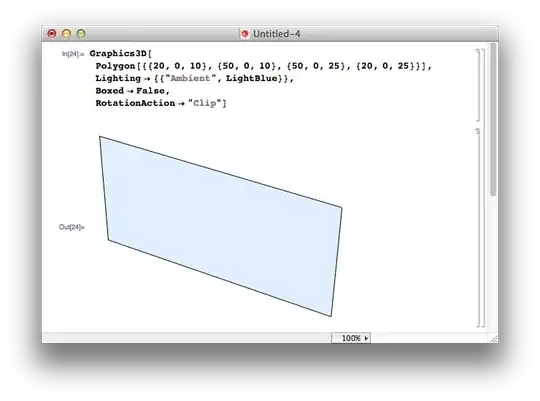
I want to make a Polygon with straight border lines. For that purpose I wrote the following code, but it doesn't show straight borders.

Graphics3D[{Style[Polygon[{{20, 0, 10}, {50, 0, 10}, {50, 0, 25}, {20, 0, 25}}],
  Lighting -> {{"Ambient", LightBlue}}]}, Boxed -> False, RotationAction -> "Clip"]

How can I make a polygon with straight lines?

enter image description here

rm -rf
  • 88,781
  • 21
  • 293
  • 472
subbu
  • 2,304
  • 1
  • 13
  • 32
  • Related: http://mathematica.stackexchange.com/q/198/131 – Yves Klett Feb 26 '13 at 10:23
  • You can switch the antialiasing quality of Preferences->Appearance->Graphics to Highest but beware as it might make graphics display unresponsive for higher resolution graphics. – gpap Feb 26 '13 at 10:23

2 Answers2

7

The Antialiasing quality dialog in Preferences offers an adjustable setting (if you have appropriate hadware, see here):

anti aliasing dialog

You can compare the differences between the two extremes in the following screen shots:

Graphics3D[
 Polygon[{{20, 0, 10}, {50, 0, 10}, {50, 0, 25}, {20, 0, 25}}], 
 Lighting -> {{"Ambient", LightBlue}},
 Boxed -> False,
 RotationAction -> "Clip"]

No Antialiasing:

enter image description here

Highest quality: enter image description here

They're not as different as you might expect. The results are probably very hardware and operating-system specific.

cormullion
  • 24,243
  • 4
  • 64
  • 133
4

From a related Q/A Antialiasing of horizontal lines:

 Row[Graphics3D[{Antialiasing -> #,
 Polygon[{{20, 0, 10}, {50, 0, 10}, {50, 0, 25}, {20, 0, 25}}]},
 Lighting -> {{"Ambient", LightBlue}}, Boxed -> False,
 RotationAction -> "Clip", ImageSize -> 400] & /@ {True, False}]

enter image description here

kglr
  • 394,356
  • 18
  • 477
  • 896