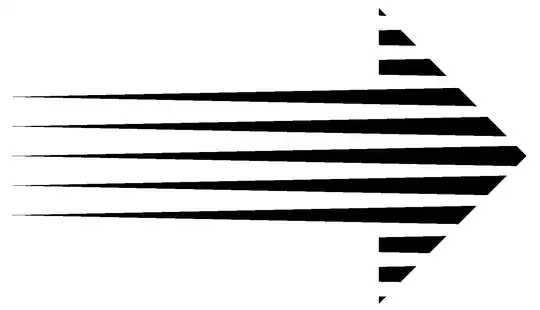
Clear["Global`*"];
pts = {{0,
    0}, {-.5, .5}, {-.5, .25}, {-1.75, .25}, {-1.75, -.25}, {-.5, \
-.25}, {-.5, -.5}};
poly = BoundaryMeshRegion[pts,
   Line@Append[#, First@#] &@Range@Length@pts];
conics =
  Table[ConicHullRegion[{-1.75, h}, {{0, 0}}, {AngleVector[.02],
     AngleVector[-.02]}], {h, -1, 1, .1}];
range = {{-2, 1}, {-1, 1}};
Graphics[
 RegionIntersection[
  BoundaryDiscretizeRegion[RegionUnion@conics, range], poly]]
pts = {{0, 0}, {-.5, .5}, {-.5, .25}, {-1.75, .25}, {-1.5,
    0}, {-1.75, -.25}, {-.5, -.25}, {-.5, -.5}};
Graphics3D[{EdgeForm[], {MaterialShading[{"Glazed", Red}], ,
   RegionProduct[Polygon[pts], Point[{{0.}, {.2}}]]},
  Black, {HalftoneShading[.3, Red, "Line"],
   RegionProduct[RegionBoundary@Polygon[pts], Line[{{0.}, {.2}}]]}},
 Lighting -> "ThreePoint", Boxed -> False]

- Use
RegionPlot3D to add shading.
pts = {{0, 0}, {-.5, .5}, {-.5, .25}, {-1.75, .25}, {-1.5,
    0}, {-1.75, -.25}, {-.5, -.25}, {-.5, -.5}};
side = RegionPlot3D[
   RegionProduct[RegionBoundary@Polygon[pts], Line[{{0.}, {.2}}]],
   MeshFunctions -> {Normalize@{1, 2, 3} . {#1, #2, #3} &},
   Mesh -> 60, MeshStyle -> None, MeshShading -> {Red, Black, Red},
   PlotStyle -> Red, Boxed -> False];
Graphics3D[{EdgeForm[], {MaterialShading[{"Glazed", Red}],
   RegionProduct[Polygon[pts], Point[{{0.}, {.2}}]]}, First@side},
 Lighting -> "ThreePoint", Boxed -> False]
Texture seems still not so perfect. ( $Version 14.0.0)
Clear["Global`*"];
pts = {{0, 0}, {-.5, .5}, {-.5, .25}, {-1.75, .25}, {-1.5,
    0}, {-1.75, -.25}, {-.5, -.25}, {-.5, -.5}};
side = RegionProduct[Line[Append[#, First@#] &@pts],
   Line[{{0.}, {.2}}]];
pic = Graphics[{Red, HatchFilling[π/2*.88, 10, 20],
    Rectangle[{0, 0}, {2, 2}]}, Background -> Black,
   PlotRangePadding -> None];
Graphics3D[{EdgeForm[], {MaterialShading[{"Glazed", Red}],
   RegionProduct[Polygon[pts], Point[{{0.}, {.2}}]]}, Texture[pic],
  side}, Lighting -> "ThreePoint", Boxed -> False]

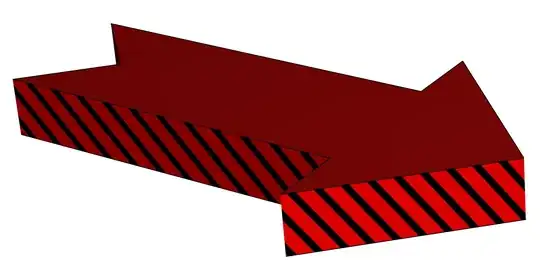
- make the sides have the same pattern.
Clear["Global`*"];
pts = {{0, 0}, {-.5, .5}, {-.5, .25}, {-1.75, .25}, {-1.5,
    0}, {-1.75, -.25}, {-.5, -.25}, {-.5, -.5}};
θ = π/3;
h = .2;
mesh[a_, b_] := Module[{e2, poly, e1, normal},
  e2 = {0, 0, 1};
  poly = Polygon[{a, b, b + h*e2, a + h*e2}];
  e1 = Normalize[b - a];
  normal =
   Normalize[Cross@{Cos[θ], Sin[θ]} . {e1, e2}];
  RegionPlot3D[poly, Mesh -> {Range[-10, 10, .02]},
   MeshFunctions -> {normal . ({#1, #2, #3}) &},
   MeshShading -> {Red, Black}, Boxed -> False]]
Graphics3D[{First /@
   mesh @@@ Partition[PadRight[#, 3] & /@ pts, 2, 1, 1], Red,
  PadRight[#, 3, 0] & /@ pts // Polygon,
  PadRight[#, 3, h] & /@ pts // Polygon}, Boxed -> False]


