10

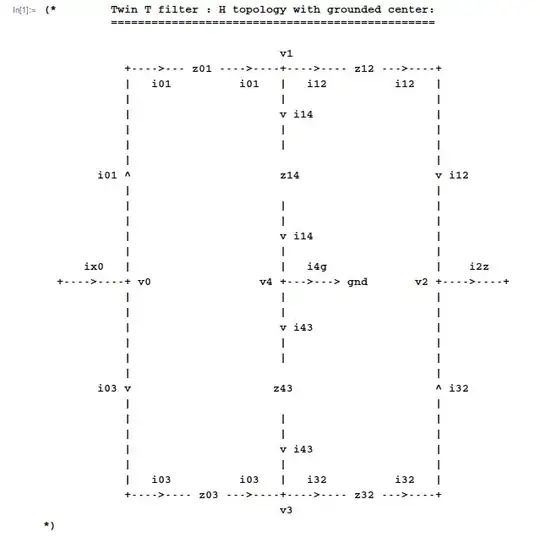
I drew the little ASCII-art electronics schema below in vim.

When i try to paste it into a Mathematica notebook, with:

A) A code cell
B) A monospaced font (Courier New)

Mathematica insists on destroying the vertical aligment.

Here is what it looks like in vim: enter image description here

And here's what it looks like in Mathematica:

enter image description here

Even worse, when I try to re-align things by hand in the notebook, the end result looks very bad (note the misaligned vertical bars on the right hand side)

enter image description here

For something so simple to be so hard ... I must be missing something glaringly obvious.

Help would be very much appreciated.

blondiepassesby
  • 313
  • 1
  • 8
  • 2
    Why are you pasting text into a code cell? Code cells automatically format their contents. You'll never get it to look right. Perhaps you want to Import the file as a String? – Michael E2 Nov 30 '13 at 19:23
  • 1
    Mathematica notebook really needs a verbatim cell and/or verbatim wrapper, where one can write Verbatim[" string "] and the content will show as is. No formating. As in Latex's verbatim environment http://www.ctan.org/pkg/verbatim, can be used for comments in code as well. Try making free form comments using (* *) and you'll see how hard it is to align the comments the way you want with the code. – Nasser Nov 30 '13 at 19:58
  • As a side note, if you're interested more in drawing circuits than text alignment, you might find these useful: Circuit drawing in Mathematica and Graph layout on a grid – Michael E2 Nov 30 '13 at 20:03
  • @MichaelE2 : I tried a text cell. Same problem. – blondiepassesby Nov 30 '13 at 20:14
  • @Kuba: Sure, I could do a graphics, but it's really not as fast as ASCII art, and all I need here is a quick and dirty schema to help me make sense of the equations. – blondiepassesby Nov 30 '13 at 20:18
  • 2
    It works for me on my own example. But it's cool you found a solution. You should post it as answer to your own question, by the way. – Michael E2 Nov 30 '13 at 20:28
  • maybe i'm being an idiot by bringing this up, but you can do some basic vector editing (by hand) in Mathematica – amr Nov 30 '13 at 20:41
  • The basic problem is that whitespace is not (or only rarely) significant in Mathematica, so in anything that counts as code, spacing is usually freely adjusted to improve legibility, to differentiate sigils from other sequences of characters, and so on. Not so for arbitrary strings, as you found. This can probably be changed in the stylesheet, but I have no experience with stylesheet editing personally. To be honest, not that it helps with this question, I'd probably draw the circuit in LTspice. Not only is it quicker, you can also simulate it as well if you want to. – Oleksandr R. Dec 01 '13 at 01:21
  • 1
    Are you really pasting that into a Code cell or an Input cell? Code cells don't reformat the text, only Input cells do. Try pasting into an actual Code cell. Use Window -> Show Toolbar, select the cell bracket, change the cell style to "Code". Or insert a new cell using Alt-8 (Command-8 on Mac). – Szabolcs Dec 01 '13 at 04:29
  • @Oleksandr : I actually designed the circuit in LTSpice in the first place. The reason I want an ASCII version of the circuit in Mathematica is because LTSpice does not let you easily annotate a circuit with node labels and branch orientations. LTSpice also does not solve symbolic system of equations: the point is to have both circuit and symbolic solutions inside Mathematica. And like I mentioned before, it is way faster to edit ASCII art than editing a drawn diagram. – blondiepassesby Dec 01 '13 at 15:15
  • @OleksandrR. With regards to the alleged "improving legibility" part, without trying to be snarky here, Mathematica does the exact opposite of the stated goal here. I'm all for smart, automated formatting, as long as it can be put to rest when it does dumb things. – blondiepassesby Dec 01 '13 at 15:19

2 Answers2

12

The Program style is purpose-built for this sort of thing:

cell using program style

If you do not like the look of the bars above and below the cell, you can remove them by selecting the cell and changing the CellFrame option in the Option Inspector:

cell with bars removed

WReach
  • 68,832
  • 4
  • 164
  • 269
3

I seem to have found a solution, kind of convoluted, and not entirely sure why it works.

  • Create a cell
  • Cell -> Convert To -> Raw Input Form
  • Open a comment in the cell
  • Paste the ASCII art
  • Close comment

This is what it looks like now:

enter image description here

blondiepassesby
  • 313
  • 1
  • 8