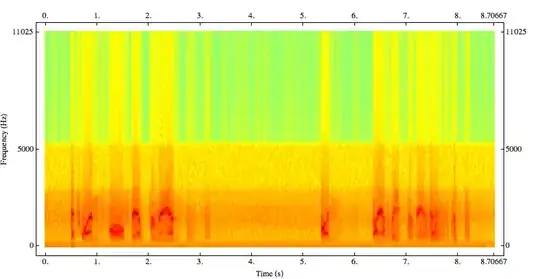
How can I compute and plot the spectrogram of a signal/time series/data in Mathematica? I have a WAV file, sampled at 44100 samples/second and I want to generate a spectrogram of that data. Something like this:

How can I compute and plot the spectrogram of a signal/time series/data in Mathematica? I have a WAV file, sampled at 44100 samples/second and I want to generate a spectrogram of that data. Something like this:


Get a sample sound:
snd = ExampleData[{"Sound", "SopranoSaxophone"}];
This gives us a Sound data structure with a SampledSoundList as first element. Extracting the data from it:
sndData = snd[[1, 1]];
sndSampleRate = snd[[1, 2]];
Plotting the data:
ListPlot[sndData, DataRange -> {0, Length[sndData]/sndSampleRate },
 ImageSize -> 600, Frame -> True,
 FrameLabel -> {"Time (s)", "Amplitude", "", ""},
 BaseStyle -> {FontFamily -> "Arial", FontWeight -> Bold, 14}]

Find the lowest amplitude level (used as reference for dB calculations):
min = Min[Abs[Fourier[sndData]]];
A spectrogram is made by making a DFT of partitions of the sample. The partitions usually have some overlap.
partSize = 2500;
offset = 250;
spectroGramData =
  Take[20*Log10[Abs[Fourier[#]]/min], {2, partSize/2 // Floor}] & /@
   Partition[sndData, partSize, offset];
Note that I skip the first element of the DFT. This is the mean level. I also show only half of the frequency data. Because of the finite sampling only half of the returned coefficient list contains useful frequency information (up to the Nyquist frequency).
MatrixPlot[
  Reverse[spectroGramData\[Transpose]],
  ColorFunction -> "Rainbow",
  DataRange ->
    Round[
     {{0, Length[sndData]/sndSampleRate },
     {sndSampleRate/partSize, sndSampleRate/2 }},
     0.1
    ],
  AspectRatio -> 1/2,  ImageSize -> 800,
  Frame -> True, FrameLabel -> {"Frequency (Hz)", "Time (s)", "", ""},
  BaseStyle -> {FontFamily -> "Arial", FontWeight -> Bold, 12}
]

A 3D spectrogram (note the different offset value):
partSize = 2500;
offset = 2500;
spectroGramData =
  Take[20*Log10[Abs[Fourier[#]]/min], {2, partSize/2 // Floor}] & /@
   Partition[sndData, partSize, offset];

ListPlot3D[spectroGramData\[Transpose], ColorFunction -> "Rainbow",
 DataRange ->
  Round[{{0, Length[sndData]/sndSampleRate }, {sndSampleRate/partSize,
      sndSampleRate/2}}, 0.1], ImageSize -> 800,
 BaseStyle -> {FontFamily -> "Arial", FontWeight -> Bold, 12}]


\[Transpose] is a FullForm version of the transpose symbol that does the same as the function Transpose. You'll find all about Transpose in Mathematica's electronic manual.
– Sjoerd C. de Vries
Apr 07 '12 at 21:40
/@ and hit F1, it'll take you to the Map page, for which /@ is the infix form shorthand. ~ can be used to convert a function taking two arguments to an infix function: Func[arg1,arg2] ==> arg1~Func~arg2. More in many places in the manual, e.g., here. By the way, it's better to ask these kinds of things in a comment directly below the answer/question that provoked your question.
– Sjoerd C. de Vries
Apr 07 '12 at 22:16
The following is a more detailed version of a Spectrogram implementation in Mathematica and is part of a larger package that I'm writing in my spare time. I've tried to keep the functionality and output structure similar to MATLAB's (but not entirely). The code is provided at the end of this answer, and I'll jump to the examples now:
First load the package and some example data:
<<SignalProcessing`
{data, fs} = {#[[1, 1, 1]], #[[1, 2]]} &@ ExampleData[{"Sound", "Apollo11SmallStep"}];
Spectrogram takes several options such as:
WindowFunction — Hamming, Hanning and rectangular (default) windows are pre-defined and you can extend it to other windows or supply one of your own.WindowLength — Samples in each segment (default is Floor[Length[data]])OverlapLength — Samples overlapping with the previous segment (default 50%)FFTLength (default: Max[256, 2^pow] where pow is the next power of 2 larger than your segment length) and SamplingFrequency are self explanatoryA sample call to Spectrogram with the above data would be:
{s, f, t} = Spectrogram[data, WindowFunction -> Hamming, WindowLength -> 200,
   SamplingFrequency -> fs];
You can then plot this like in Sjoerd's example (or you can implement a default plot style within Spectrogram) to get something like:
A couple of things that are on my to-do list are to implement the Goertzel algorithm so that you can easily supply a list of frequencies at which the spectrogram needs to be calculated and different plotting schemes for 2D (something like the plot above as default) and waterfall and similar for 3D plots. I'll update this post when I get around to doing that.
BeginPackage["SignalProcessing`"];
Unprotect[Spectrogram,Hamming,Hanning,Rectangular];
Begin["Private"];
(* Input checks *)
DoubleQ[data_List] := And @@ Function[x, MachineNumberQ[x], Listable][data];
CheckInput::sparse = "The input data must not be sparse!";
CheckInput::nodbl = "The input data must be machine precision!";
CheckInput[x_] := Which[
    Head[x] === SparseArray, Message[CheckInput::sparse],
    ! DoubleQ[x], Message[CheckInput::nodbl],
    True, True
]
(* Window functions *)
Rectangular = UnitStep[Range[#]] &;
Hanning = 0.5 (1 - Cos[2 Pi Range[0, #-1]/(#-1)]) &;
Hamming = 0.54 - 0.46 Cos[2 Pi Range[0, #-1]/(#-1)] &;
(* Spectrogram code )
Spectrogram[data_List, opts : OptionsPattern[{
    WindowFunction -> Rectangular, WindowLength :> Floor[Length[data]/8],
    OverlapLength -> {}, FFTLength -> {}, SamplingFrequency -> 1}]] :=
    Module[{
        x = Developer`ToPackedArray[data], len = Length[data], win, seg,
        olap, nfft, fs, spectra, time, freq},
        ( parameters )
        seg = OptionValue[WindowLength];
        olap = If[# === {}, Floor[seg/2], #] &@OptionValue[OverlapLength];
        nfft = If[# === {}, Max[2^Ceiling[Log2[seg]], 256], #] &@ OptionValue[FFTLength];
        win = OptionValue[WindowFunction];
        fs = OptionValue[SamplingFrequency];
        ( output )
        time = Range[0, len]/fs;
        freq = fs Range[0, nfft/2]/nfft ;
        spectra = Take[Abs[Fourier[PadRight[#win[seg], nfft], FourierParameters -> {1, -1}]] & /@
            Partition[x, seg, seg - olap, {1, -1}] // Transpose, Floor[nfft/2] + 1];
    {spectra, freq, time}
] /; CheckInput[data]

End[];
Protect[Spectrogram,Hamming,Hanning,Rectangular];
EndPackage[];
Fourier with a data list whose length is a power of 2. DFT implementations are usually faster when this is the case (I haven't tested this on MMA), but speed doesn't seem to be an issue here.
– Sjoerd C. de Vries
Apr 08 '12 at 16:04
f are correct (2nd bin is about 21.5ish), but since I set the range from Min[f] to Max[f], it stretches the labeling from the left end of the first bin (if you consider it a rectangle) to the right end of the last bin instead of the left end of the last bin. So while I don't think that starting from 20 (or whatever it is) will fix this (it'll have the same subtle misalignment), I agree that it needs to be fixed. I hadn't gotten around to implementing a custom plot of my own and just quickly used yours :)
– rm -rf
Apr 08 '12 at 17:41
Version 9 has introduced several signal processing functions and Spectrogram is now a built-in function. You can simply do:
{data, fs} = {#[[1, 1, 1]], #[[1, 2]]} &@ExampleData[{"Sound", "Apollo11SmallStep"}];
Spectrogram[data, SampleRate -> fs, ColorFunction -> "Rainbow",
    FrameLabel -> {"Frequency (Hz)", "Time (s)"}]

FrameLabel (the capture is correct).
– anderstood
Feb 27 '16 at 18:29
Mathematica can plot spectrograms using the Spectrogram function or the SpectrogramArray function, or the Fourier function -- it is very general and powerful. Here are some examples of audio spectrograms from the Wolfram demonstration site and here is a discussion on Mathematica stackexchange of the process of taking spectrograms of audio. To use mp3s you will need to convert them to .wav files, which can be done using a program like Audacity or Quicktime (or many others). If your final goal is to plot spectrograms, Audacity (or other free software) might be more appropriate. What you would gain in Mathematica is the ability to control the analysis in complete detail -- but this would not be automatic or trivial, it would take some knowledge of how the spectral functions work.

