6

I am trying to use a ColorFunction with Opacity in ContourPlot. Here's my code:

data = RandomVariate[BinormalDistribution[.75], 10];
d = SmoothKernelDistribution[data];
cf[z_] := {Opacity[z], Red};
sc1 = ContourPlot[
   Evaluate@PDF[d, {x, y}], {x, -3, 3}, {y, -3, 3}, 
   PlotRange -> All, PlotPoints -> 50, ColorFunction -> cf, 
   ColorFunctionScaling -> True]

And here's what it produces:

enter image description here

How can the ugly mesh be avoided? I am using Mathematica 8.0.1 in OS X.

Szabolcs
  • 234,956
  • 30
  • 623
  • 1,263
Guillochon
  • 6,117
  • 2
  • 31
  • 57

3 Answers3

10

If you are using OS X the use undocumented Method -> {"TransparentPolygonMesh" -> True}

enter image description here

Mike Honeychurch
  • 37,541
  • 3
  • 85
  • 158
3

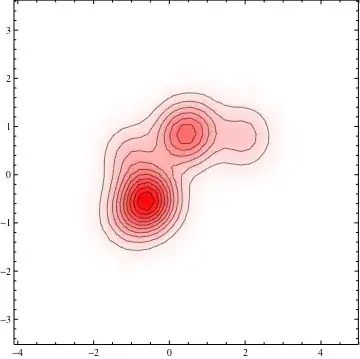
Since you are looking at a PDF, I would use SmoothDensityHistogram to plot it, instead.

data = RandomVariate[BinormalDistribution[.75], 10];
d = SmoothKernelDistribution[data];
cf[z_] := {Opacity[z], Red};

sc1 = SmoothDensityHistogram[data , Automatic, "PDF", 
  PlotRange -> All, ColorFunction -> cf, Mesh -> 10, 
  MeshStyle -> Directive[Opacity[0.5], Black]]

enter image description here

By default, in this case, it was not displaying the contours, so I added them via Mesh and MeshStyle. Modify to taste.

rcollyer
  • 33,976
  • 7
  • 92
  • 191
3

Just for behavior documentation. Mathematica 8.0 on WinXP.

GraphicsRow[Style[sc1, Antialiasing -> #] & /@ {True, False}]

Mathematica graphics

Dr. belisarius
  • 115,881
  • 13
  • 203
  • 453
  • When I tested this on Windows 7, sc1 without any antialiasing option produced an antialiased graphic without a visible mesh. (I.e. when not specifying Antialiasing at all, the problem didn't appear.) – Szabolcs Feb 28 '13 at 21:51
  • I get the same with mma 9.0.0 win7 64 bit http://i.stack.imgur.com/f9um4.png – Ajasja Feb 28 '13 at 21:57
  • @Szabolcs So it's definitely due to a change in defaults. I think specifying the Antialiasing makes the results portable – Dr. belisarius Feb 28 '13 at 21:58
  • @Ajasja Try including Automatic too in the list of options, not just True and False. This is what I got with Automatic: http://i.stack.imgur.com/Vtpi1.png – Szabolcs Mar 01 '13 at 00:24
  • I have to comment on this again, because it's misleading: on all Windows systems I tried, there's no problem with the mesh if you don't use any anti-aliasing setting at all. A fair example would show Antialiasing -> Automatic as well. This example prevented the original question from being closed as a duplicate even though it really should be. It's a Mac OS X specific issue which is solved by the suggestion in the accepted answer. – Szabolcs Apr 04 '13 at 14:09
  • @Szabolcs This is a cooperatively edited site. Please feel free to update my answer if you feel it's misleading. – Dr. belisarius Apr 04 '13 at 14:15
  • @belisarius I'd have to wait until I get to my office where we have a Windows machine, so it's a bit troublesome ... do you get the mesh with Antialiasing -> Automatic? – Szabolcs Apr 04 '13 at 14:16
  • @Szabolcs Nope. – Dr. belisarius Apr 04 '13 at 14:19
  • It seems that there's no issue on Windows then, in the sense that the default settings (Antialiasing -> Automatic) do not produce a visible mesh. On OS X there's still a mesh with Antialiasing -> False. The only solution seems to be Show[..., Method -> {"TransparentPolygonMesh" -> True}]. Do you think we could close this as a duplicate of this one? (My close vote is already expired.) – Szabolcs Apr 04 '13 at 14:24
  • @Szabolcs Ok. I can't vote bc JM already marked it as dup – Dr. belisarius Apr 04 '13 at 14:28