31

I'm trying to extrude a nice 3D form from the 2D binary image below using the code posted, but I haven't had any luck in figuring out the error that's keeping GraphicsComplex from running. The end result should be the 3D points and a plot. Any help would certainly be appreciated!

my 2D binary Image

  pts= ImageData[testimage];
  twoD = Rescale[Table[Thread[{pts[[i]], pts[[i]]}], {i, 1, Length[pts]}]];

 extrude[pts_, h_] := Module[{vb, vt, len = Length[pts], nh, shape},
 If[! NumericQ[h], nh = 0., nh = N@h];
 vb = Table[{pts[[i, 1]], pts[[i, 2]], 0}, {i, len}];
 vt = Table[{pts[[i, 1]], pts[[i, 2]], nh}, {i, len}];
 shape = 
  GraphicsComplex[
   Join[vb, vt], {Polygon[Range[len]], 
    Polygon[Append[
      Table[{i, i + 1, len + i + 1, len + i}, {i, len - 1}], {len, 1,
     len + 1, 2 len}]], Polygon[Range[len + 1, 2 len]]}]
 ]
Nothingtoseehere
  • 4,518
  • 2
  • 30
  • 58

4 Answers4

24

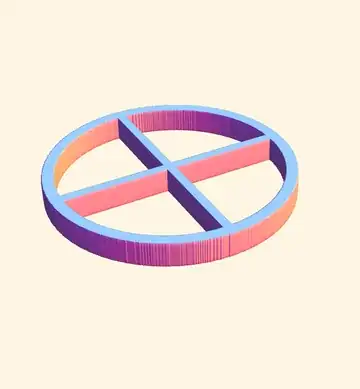
One way to extrude a 3D object from a binary 2D image is to use RegionPlot3D:

pts = ImageData[ColorNegate@Binarize@Import["https://i.stack.imgur.com/UWO6k.png"], "Bit"];
g = RegionPlot3D[pts[[Sequence @@ Round@{i, j}]] == 1, {i, 1, #1}, {j, 1, #2}, {z, 
 0, 1}, PlotPoints -> 100, Mesh -> False, Axes -> False, Boxed -> False] & @@   Dimensions[pts]
pts = Cases[g, x_GraphicsComplex :> First@x, Infinity]

enter image description here

Nothingtoseehere
  • 4,518
  • 2
  • 30
  • 58
rm -rf
  • 88,781
  • 21
  • 293
  • 472
  • very nice! How do I get the points for this form? – Nothingtoseehere May 30 '12 at 03:10
  • 2
    @RHall I made an edit in the grace period. Now both, my first version and halirutan's edit work :) – rm -rf May 30 '12 at 03:11
  • 2
    I always wanted to test what happens when several people try to screw with a snip of code at the same time ;-) – halirutan May 30 '12 at 03:13
  • There seems to be some limit to the thickness of the shape that will extrude successfully.img = ColorNegate@ Binarize@Image[Graphics[{Thickness[.01], Circle[{0, 0}, 1]}]] starts to show some voids. – image_doctor May 30 '12 at 07:29
  • 1
    @image_doctor yes, you'll certainly hit some limit at some point. In this case, you can increase the number of plotpoints (will have to be quite high and be warned — it'll be slow) – rm -rf May 30 '12 at 07:43
  • @R.M Thanks that did it, it has an interesting 3D printed type of surface effect. – image_doctor May 30 '12 at 08:32
  • @R.M Slight edit to your code to get the 3D points for this plot. Thanks very much for your help! – Nothingtoseehere May 30 '12 at 11:13
  • Just a note that when using a real binary image, Binarize is not needed in the above function. – Nothingtoseehere May 31 '12 at 01:53
  • 1
    @RHall Yeah, I wasn't sure if your image was binary or if you just uploaded some random image from the internet :) Thanks for the edit, now we're back to my first version before halirutan's edit :P – rm -rf May 31 '12 at 01:55
19

Unfortunately, I see more than one point why your approach will not work like you hope. Let me give a completely different approach which consumes some memory but is really short.

The trick is to use ListContourPlot3D and to create the input-volume from your image which you use as slices. The only thing you have to remember is that you have to pad your stack of images with two slices of zeroes only.

bm = 1 - ImageData[Import["https://i.stack.imgur.com/UWO6k.png"],"Bit"];
With[{zero = ConstantArray[0, Dimensions[bm]]},
 ListContourPlot3D[Append[Prepend[Table[bm, {5}], zero], zero], Contours -> {0.5}]
]

enter image description here

halirutan
  • 112,764
  • 7
  • 263
  • 474
  • same question as below for you. How do I get the points for this 3D form? Thanks very much! – Nothingtoseehere May 30 '12 at 03:21
  • Since you used Polygon in your own code, I didn't know that you want to have points. Can you state in your question more clearly, what exactly you expect as outcome? A surface, a volume, points on the surface? – halirutan May 30 '12 at 12:39
15

Version 11 introduces the function ImageMesh[], which makes the generation of a 3D extrusion relatively easy:

img = ColorNegate[Import["https://i.stack.imgur.com/UWO6k.png"]];

With[{h = 50}, (* height *)
     RegionProduct[ImageMesh[img], MeshRegion[{{0}, {h}}, Line[{1, 2}]]]]

extruded logo as a MeshRegion

Alternatively, one could construct an Image3D[] object that can then be fed to ImageMesh[]:

ImageMesh[Image3D[ConstantArray[img, 50]]]

extruded logo, second version

J. M.'s missing motivation
  • 124,525
  • 11
  • 401
  • 574
10

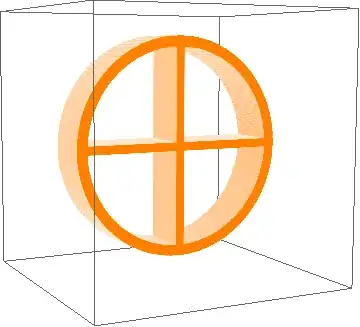
In version 9, there is a new way to extrude shapes, based on Image3D or Raster3D. Borrowing directly from the documentation for Raster3D, under "Neat Examples", the extrusion can now be done by extracting the ImageData of the bitmap, making sure that it contains an alpha channel which can then be converted to "empty space" in Image3D. So I first load the example image and convert it to im1 which has transparency and also gets an orange color (I just added the latter to make it more interesting):

im = Import["https://i.stack.imgur.com/UWO6k.png"];
im1 = SetAlphaChannel[ColorReplace[im, Black -> Orange], 
   ColorNegate[im]];

Graphics3D[{Raster3D[{ImageData[im1]}, {{0, 1, 0.4}, {1, 0, 0.6}}, 
   Method -> {"InterpolateValues" -> True}]}, PlotRange -> {0, 1}, 
 ViewPoint -> {-1.54, 0.35, 3}, ViewVertical -> {-0.23, 0.86, 0.46}]

Interpolated

The special thing here is the "InterpolateValues" -> True method which smoothes the transition at the surface of the solid. Here is what it looks like if you leave out that Method option:

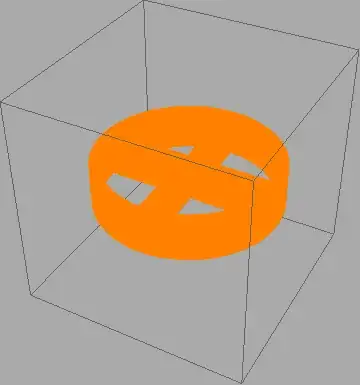
Graphics3D[{Raster3D[{ImageData[im1]}, {{0, 1, 0.4}, {1, 0, 0.6}}]}, 
 PlotRange -> {0, 1}, Background -> Lighter[Gray]]

no method

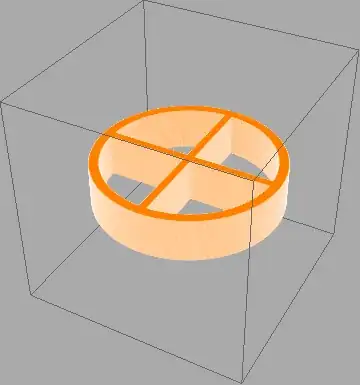
Instead of the Method option, I also tried a different approach in which I simply smoothed the borders of the source image in addition to coloring it:

Graphics3D[{Raster3D[{ImageData[Blur@im1]}, {{0, 1, 0.4}, {1, 0, 
     0.6}}]}, PlotRange -> {0, 1}, Background -> Lighter[Gray]]

blur

It seems that the Blur@im1 has approximately the same effect as the Method option in the first extrusion.

Jens
  • 97,245
  • 7
  • 213
  • 499